![Type=Full, Color=Light, Lockup=Default@2x.png]](https://7191758.fs1.hubspotusercontent-na1.net/hub/7191758/hubfs/Type=Full%2c%20Color=Light%2c%20Lockup=Default@2x.png?height=32&name=Type=Full%2c%20Color=Light%2c%20Lockup=Default@2x.png)
The Life Ring and Help Center is represented by the  green circled question mark icon placed at the top right of your screen.
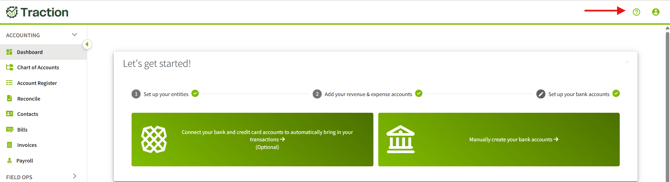
Options
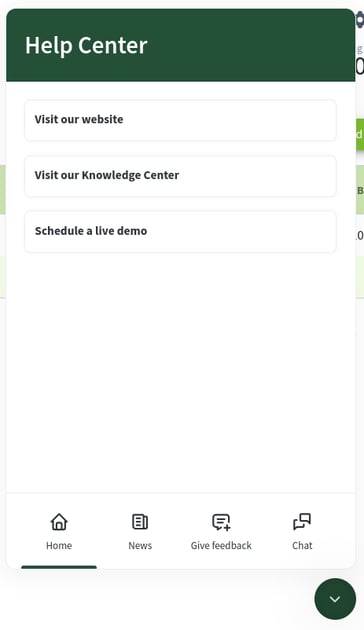
| Home | Visit our Website Visit our Knowledge Center Schedule a live demo |
| News | Review previous news items |
| Give feedback | Provide text, screenshots, and/or a recording of an issue you are experiencing for our Customer Success Team to review. |
| Chat | Start a new live chat with our Customer Success Team. |
Send Feedback
You can send text, screenshots, and videos back to the Traction Success Team. Click the Give Feedback button to open the Feedback section.

From here, you can enter in text for your feedback, or click the Take screenshot or Record video.

Taking screenshot
After clicking Take screenshot, the Life Ring will take a few moments to gather the screenshot.

Once the screenshot has been created, you can Highlight or Blacken a section. Once you have made any edits, click the Attach button to include it in your feedback.

Record video
After clicking Record video, the Life Ring will take a few moments to gather the screenshot.

Once the recording has started, perform the activity you want to record. You have up to 35 seconds of recording time available. Once you are done recording, click Stop.

After the recording has been created, you can review the recording. Once everything is good, click the Attach button to include it in your feedback.

Delete screenshots and videos
You can delete the attached screenshots and videos by clicking the blue X in the main feedback screen.
