![Type=Full, Color=Light, Lockup=Default@2x.png]](https://info.tractionag.com/hs-fs/hubfs/Type=Full%2c%20Color=Light%2c%20Lockup=Default@2x.png?height=32&name=Type=Full%2c%20Color=Light%2c%20Lockup=Default@2x.png)
Traction now has named roles with real permissions. Instead of every invited user getting full access with a single admin flag, account owners choose a role for each person: office roles for the web, mobile-only roles for the field crew. The role controls what each user can see and do everywhere in Traction, on the web, in the mobile app, and on the server itself, so access rules cannot be bypassed.
Three rules worth knowing up front:
- One role per person per business. Roles are assigned per business, so someone with access to multiple businesses on your account can hold a different role in each. Switching businesses can change what they can do.
- The account owner is permanently an Administrator. The owner's role cannot be changed and the owner cannot be removed, by anyone.
- Nobody can change their own role, including Administrators. Another Administrator has to do it.
Jump to a Section
The Roles
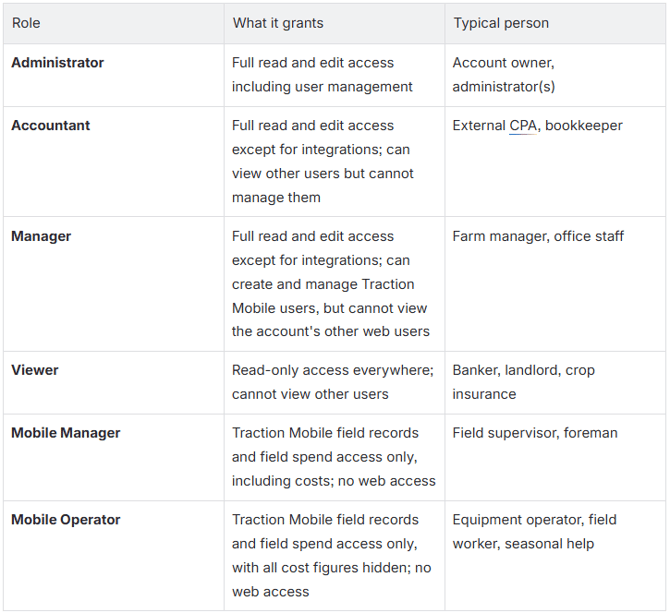
How to Use Roles & Permissions
When you invite someone to access your account, you can now assign their role from the start, whether that’s an Accountant, Viewer, or another role that fits their responsibilities. You can also see each person’s role and make changes when needed.
How to add a New User & Assign Permissions
1. In the top right corner of your Traction account, click your account menu icon (profile), then select Account Management. 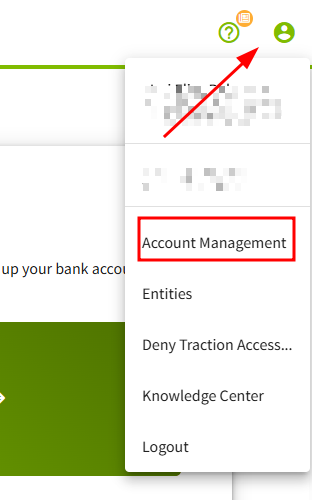
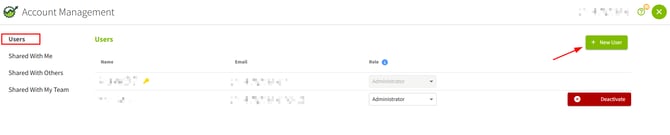
2. Next Click on + New User at the top right side within the Users section.
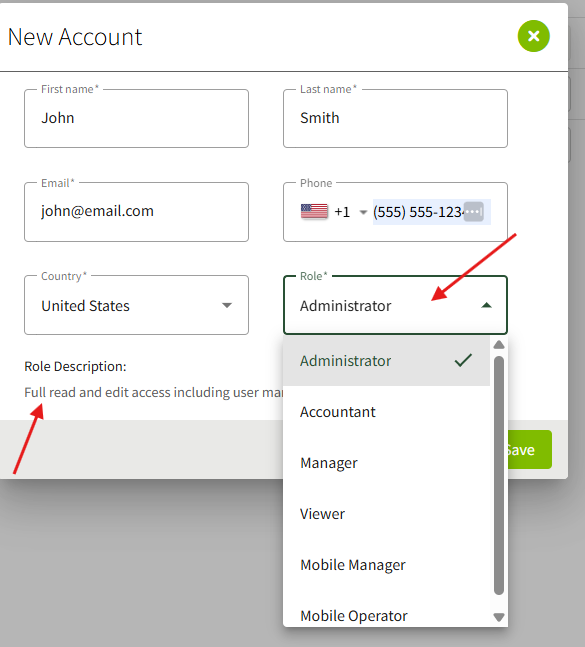
3. Enter the new user's email address and name, then select their role from the dropdown menu. Each role's description shows what that person can access and do. Click Save.
4. The system will send the new user a time-sensitive activation email. The invited user will receive an email with an Activate Account link. They'll click it and set up their password to complete their account setup. 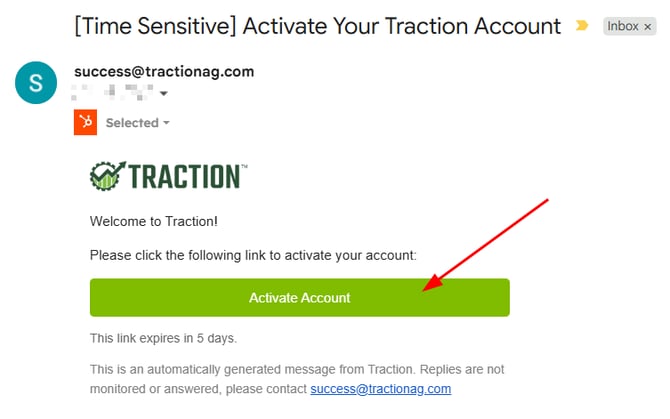
Managing users and roles
- Adding users happens on the web under Account Management. Administrators can add anyone and assign any role; Managers can add and manage mobile users only, and their user list shows only mobile users (plus themselves). The role is chosen when the user is created, and role descriptions are shown in the picker.
- Changing a role is done from the user list, with a confirmation that spells out what the new role grants. The person whose role changed receives an email ("Your Traction role has changed") that names their new role, and their access updates everywhere.
- Sharing your account with an outside party also carries a role. The share invite defaults to Accountant, which fits the most common case (a CPA), and mobile-only roles can be assigned on share invites too, so an outside operator can be given field-only access. The invitee sees which role they were assigned before accepting, and mobile users can accept invitations right in the app.
- Removing access is a deactivation, not a deletion; the user's history stays attached to their name.
For existing accounts
When roles first arrive, nobody loses access: every existing user on your account starts as an Administrator, which matches what access effectively was before roles existed. The account owner should then review the user list and assign narrower roles where they make sense (your bookkeeper to Accountant, your banker to Viewer, field crew to mobile roles). Until you do, everyone can still do everything, exactly as before.
Only Administrators can add users. Managers can only add Mobile Manager or Mobile Operator roles; Accountants and Viewers cannot add users.
How to share your account with a Trusted Advisor (Accountant)
How to share your account with a Trusted Advisor
- See our Knowledge base article for complete steps on sharing with an Accountant.
- Important: The person you're inviting must set up a Traction trial account using the same email address you're sending the invite to. Contact support if you need assistance.