![Type=Full, Color=Light, Lockup=Default@2x.png]](https://info.tractionag.com/hs-fs/hubfs/Type=Full%2c%20Color=Light%2c%20Lockup=Default@2x.png?height=32&name=Type=Full%2c%20Color=Light%2c%20Lockup=Default@2x.png)
1. How do I create a General Ledger Detail Report?
2.How do I create a General Ledger Detail Report and include Quantity Columns?
3. How do I create a General Ledger Detail Report and summarize the Bank & Cash Accounts?
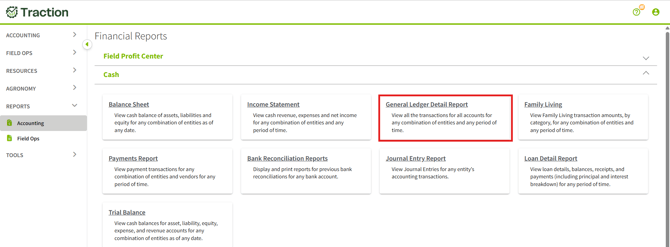
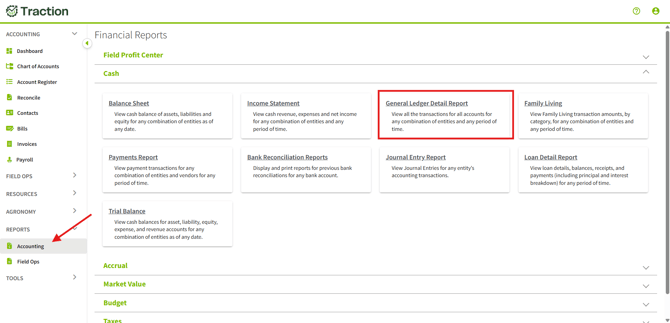
1. Navigate to Reports and expand the Cash section. Click on General Ledger Detail Report.
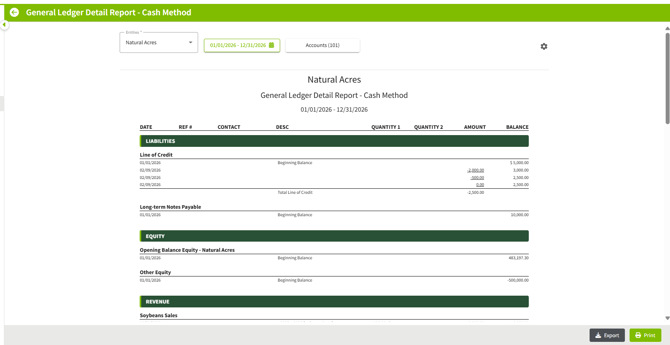
2. When the Report opens, if you only have a single entity, it will generate a General Ledger Report, based on the current year for that entity.
If you have multiple entities, all of the entities will be chosen initially.
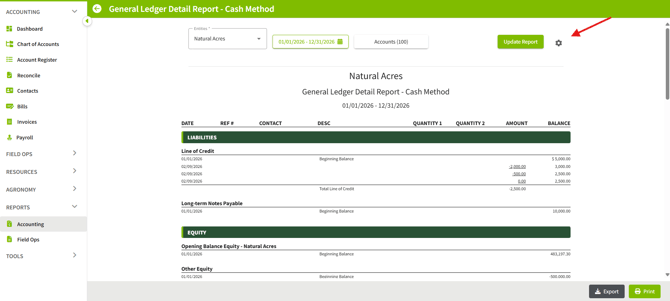
3. You can configure the report to include particular entities' transactions for a specific date range and specific accounts.
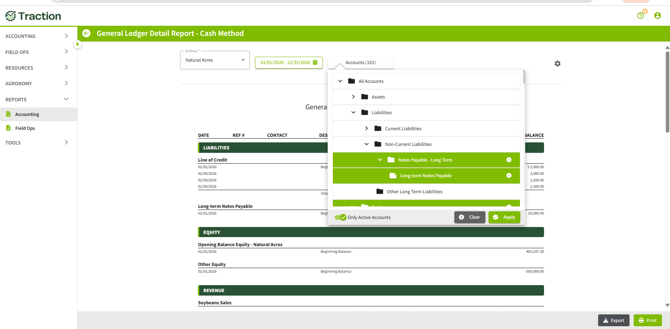
After you are done making changes, click the Update Report button and the report will update.

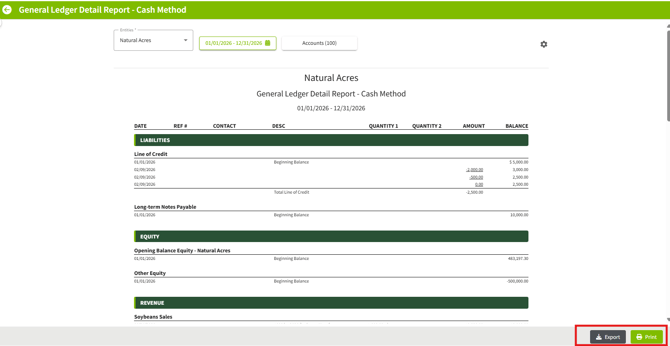
4. Once you have generated a report with the settings you want, you can review the information on the screen, export to CSV, or print a copy using the buttons at the bottom right-hand side.
General Ledger Detail Report: Quantity Columns
The General Ledger Detail Report now includes quantity data, giving you a more complete picture of your transactions without needing to cross-reference source records.
1. Access the General Ledger Detail Report as detailed in the steps above.
2. Select the desired entity combination, date range, and applicable accounts, then click the  settings cog on the top right to access the additional settings menu.
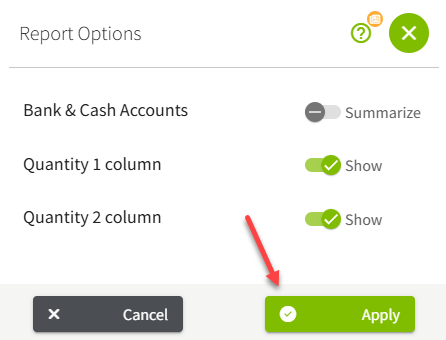
This action will generate Report Options. Slide on the green bar, Show, to include the Quantity 1 and Quantity 2 columns as desired. Click Apply at the bottom right.
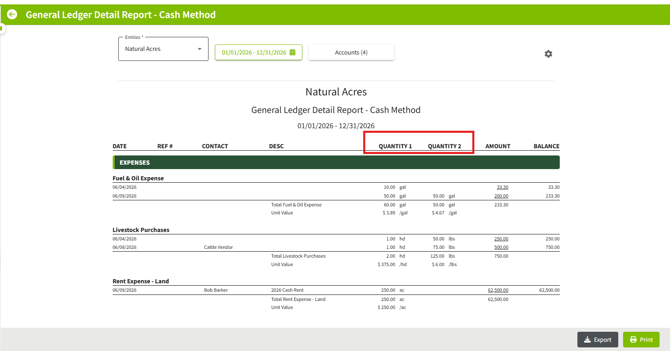
At the account level, the report displays totals for Quantity 1 and Quantity 2, along with a Unit Value: the total dollar amount divided by the total quantity. If an account contains transactions with mixed units of measure, the quantity total will still display with the unit of measure left blank.
3. Once you have generated a report with the settings you want, you can review the information on the screen, export to CSV, or print a copy using the buttons at the bottom right-hand side.
When Quantity 1 or Quantity 2 are enabled, they will be included in both the printed version of the report and the exported CSV file.
General Ledger Detail Report: Bank & Cash Accounts
Following the instructions above to navigate to the General Ledger Detail Report. Choose the cog to open additional Report Options - Bank & Cash Accounts - When you toggle on the Bank & Cash Accounts option and choose Apply, this will enable each Bank and Cash account to display in a condensed summary for the selected date range rather than individual transaction lines:
- Beginning Balance: the account balance as of the start of the date range
- Total Inflows: all deposits and other increases during the period
- Total Outflows: all payments and other decreases during the period
- Ending Balance: calculated from the above values
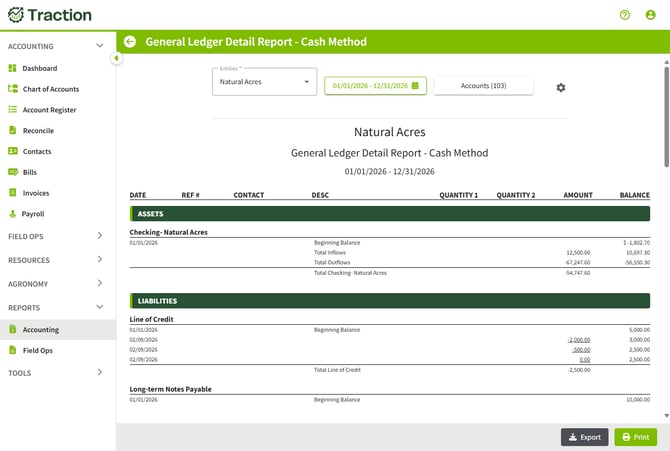
This will provide a more high-level, summarized view of your banking activity without the line-by-line detail. All transaction details remain fully visible in the offsetting expense, revenue, and other accounts, so nothing is lost from the report overall.
The Summarize setting is reflected in both the printed report and the exported CSV file.