![Type=Full, Color=Light, Lockup=Default@2x.png]](https://info.tractionag.com/hs-fs/hubfs/Type=Full%2c%20Color=Light%2c%20Lockup=Default@2x.png?height=32&name=Type=Full%2c%20Color=Light%2c%20Lockup=Default@2x.png)
ℹ️ You can also import your financial transactions via CSV.
Connecting with Plaid is optional.
If you cannot find your bank or are having issues connecting to your account, please contact our Traction Support Team: 1-888-466-6080, option 2, support@tractionag.com, or through the Chat feature in our application.
How do I set up my bank accounts in Traction?
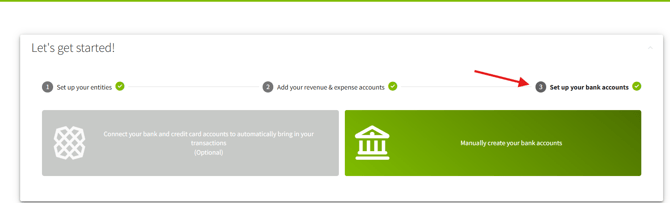
When you reach Step 3: Set up your bank accounts in Traction, you’ll now see two choices for adding your bank and credit card accounts. You can either connect your accounts through Plaid (optional), or manually create your bank accounts without using Plaid.
This article will walk you through both options so you can choose whichever works best for your business.
🟩 Option 1: Connect your bank and credit card accounts (Optional)
1. To start, click on Connect your banks (step 3), followed by the gray -Connect your bank and credit card accounts to automatically bring in your transactions button.
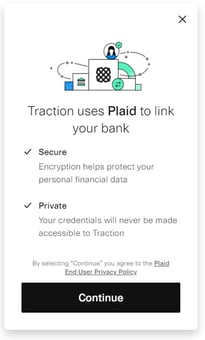
2. We use a service called Plaid to connect your bank with Traction. Plaid is secured with end-to-end encryption and your credentials are never accessible to Traction.
To proceed, click the Continue button.
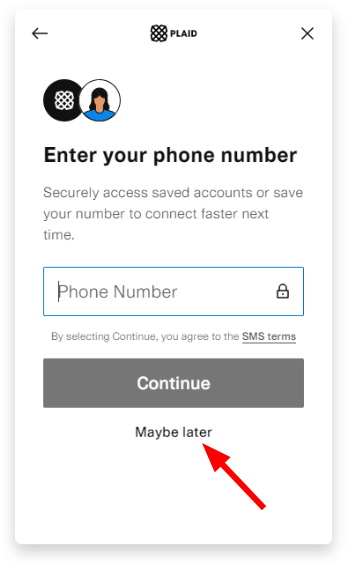
📝 Entering Your Phone Number for Plaid
If this is your second bank connection, you may need a prompt to enter your phone number when connecting. You can continue with the setup, however, it is not required. You can instead click the Maybe later near the bottom.
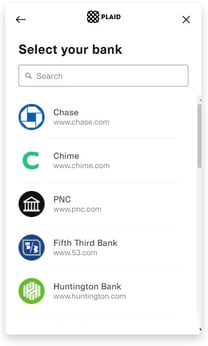
3. Search for your bank by typing its name in the Search box and then click on your bank's name.
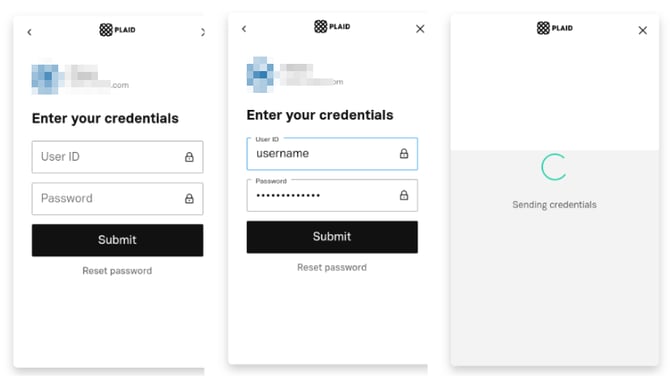
4. You will need to enter the same credentials you use to access your online banking account. Click Submit to continue.
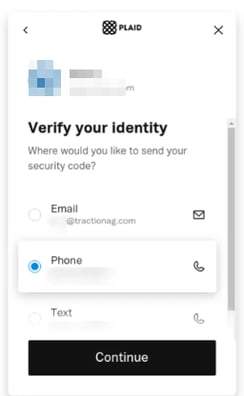
5. Plaid will connect with your bank and then ask you to verify your account via e-mail, phone, or text. Select the method you prefer and then click Continue. In our example, we used the method of receiving a phone call.
6. Once you receive the verification code, text, or phone call method you previously selected enter it into the Code text box, followed by Submit.
Note:
After Plaid completes the connection, you’ll see the Connect Bank Accounts screen showing all accounts associated with your login. While all accounts may appear in the list, you are not required to connect all of them.
Only the accounts you choose to map (by selecting an account in the “Search Traction accounts” box and clicking Save & Close) will be added to Traction. Any accounts left unselected will not be connected or imported.
7. Plaid will finish the connection and if everything went through correctly, you will now see the Connect Bank Account screen.
From the ''Search Traction accounts'' box select a bank account from your Chart of Account. If you need to create a new one, click the (+)New button to create a new one.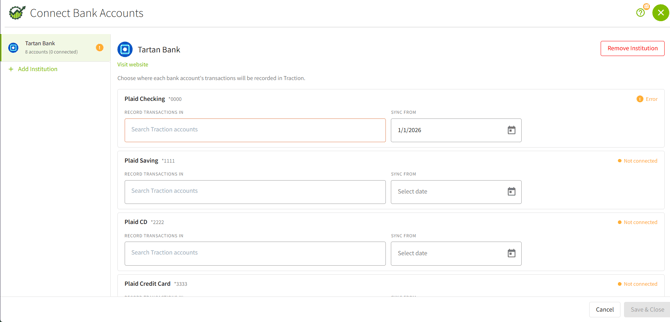
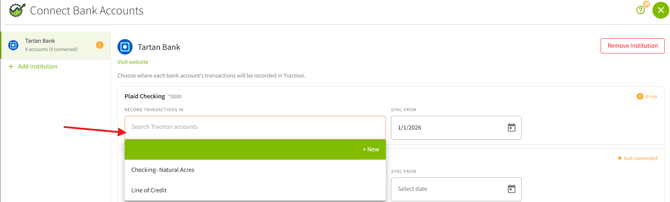
Note: Before connecting, update the Sync start date to the date of your choosing. For the best results, choose a date within the last 90 days- some institutions limit how far back the transaction history can be retrieved.
8. You will now see the name of the account you selected or created. Before connecting, update the Sync start date to the date of your choosing. Slide on the Green Bar to Use Bank Balance as of the sync from date. This means the Plaid connection will record your opening balance to the account register you selected.
If you decide not to slide on the green bar to Use Bank Balance, you can manually enter this value within the chart of accounts.
Once you have everything setup, click the Save & Close button.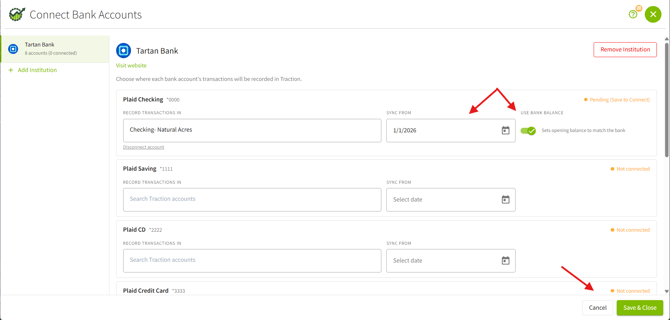
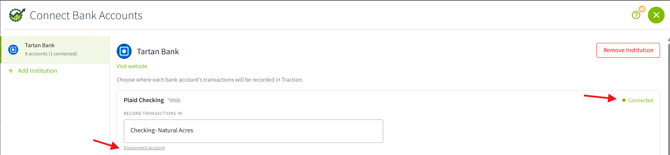
9. If successful you will now have a Disconnect account button and a Green Connected status on the right of your banking integration. Your banking account is now synced and connected.
10. To bring in new synced bank transactions, click on the Account Register and select your synced bank account. When you make the connection the first time, you will see the following message below. Click on Yes, retrieve from bank(s).
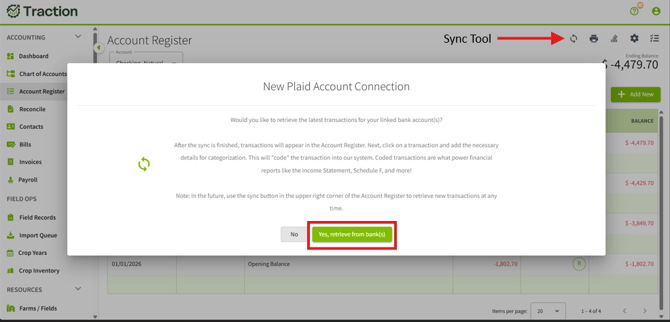
Note: In the future, use the sync button in the upper right hand corner of the Account Register to retrieve new transactions at any time.
Each time you login to Traction you will have to do this to update your transactions.
🟩 Option 2: Manually create your bank accounts
If you prefer not to use Plaid, you can manually create your bank accounts and enter transactions yourself.
- On Step 3: Set up your bank accounts, click Manually create your bank accounts.
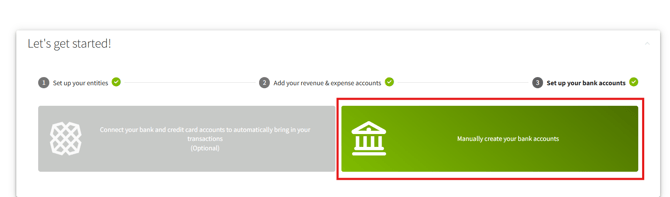 You will be walked through creating your bank and credit card account registers within Traction.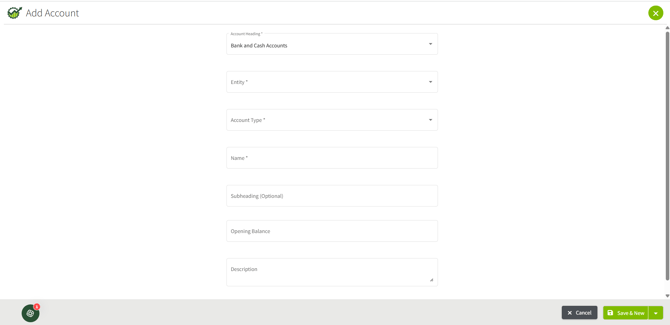
- Once your accounts are created, you can enter transactions manually, import via CSV, or sync later if you decide to connect through Plaid.