![Type=Full, Color=Light, Lockup=Default@2x.png]](https://info.tractionag.com/hs-fs/hubfs/Type=Full%2c%20Color=Light%2c%20Lockup=Default@2x.png?height=32&name=Type=Full%2c%20Color=Light%2c%20Lockup=Default@2x.png)
Beta: This feature is in beta. Screens and options may change as we gather feedback. Please reach out to your account manager to learn more.
Overview
A livestock profit center is a group of animals you want to track profitability on. It can represent a purchase, a location, a year, or any combination that fits how you run your operation. After you create one, you allocate amounts from payments and deposits to it. Traction then shows its revenue, expenses, and profit, including profit per head and per pound.
Former PCMars and FarmWorks users: what those programs called "Enterprises," Traction calls "Profit Centers."
Before you start, keep in mind:
- Profit centers analyze revenue and expenses. They don't keep a livestock inventory. Purchases, sales, and deaths don't change the head count or weight on a group.
- Head and pound quantities are for analysis only. You enter and adjust them manually. Traction uses them to calculate per-head and per-pound figures.
- Profit centers are built for market animals. You can set up breeding stock, with some limits. See Breeding stock below.
The workflow has four parts:
- Create a profit center for each livestock group.
- Allocate payment and deposit line items to one or more profit centers.
- Review activity and profitability on the Profit Centers screen.
- View the Profit Center - Detailed report for one group or several.
Jump to a section
Plan your livestock groups
How you set up groups depends on how your operation runs.

Give each group a name you can recognize at a glance, such as one that includes the purchase date or birth year.
Breeding stock
Livestock Profit Centers aren't designed specifically for breeding stock. Breeding animals are usually treated as assets, and profit centers analyze only revenue and expenses.
You can still set up a breeding group to track the cost of maintaining the herd, such as feed and vet fees. The purchase cost and value of the breeding animals themselves stay on the asset side and aren't reflected in the profit center.
Create a livestock profit center
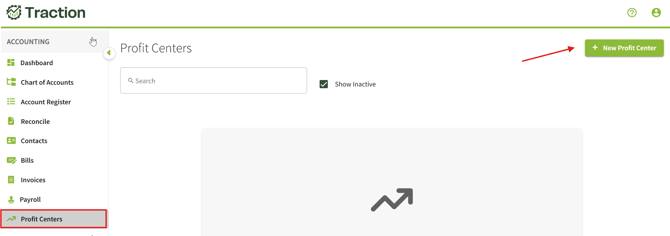
1. In the left-hand menu, go to Accounting > Profit Centers, then click + New Profit Center.
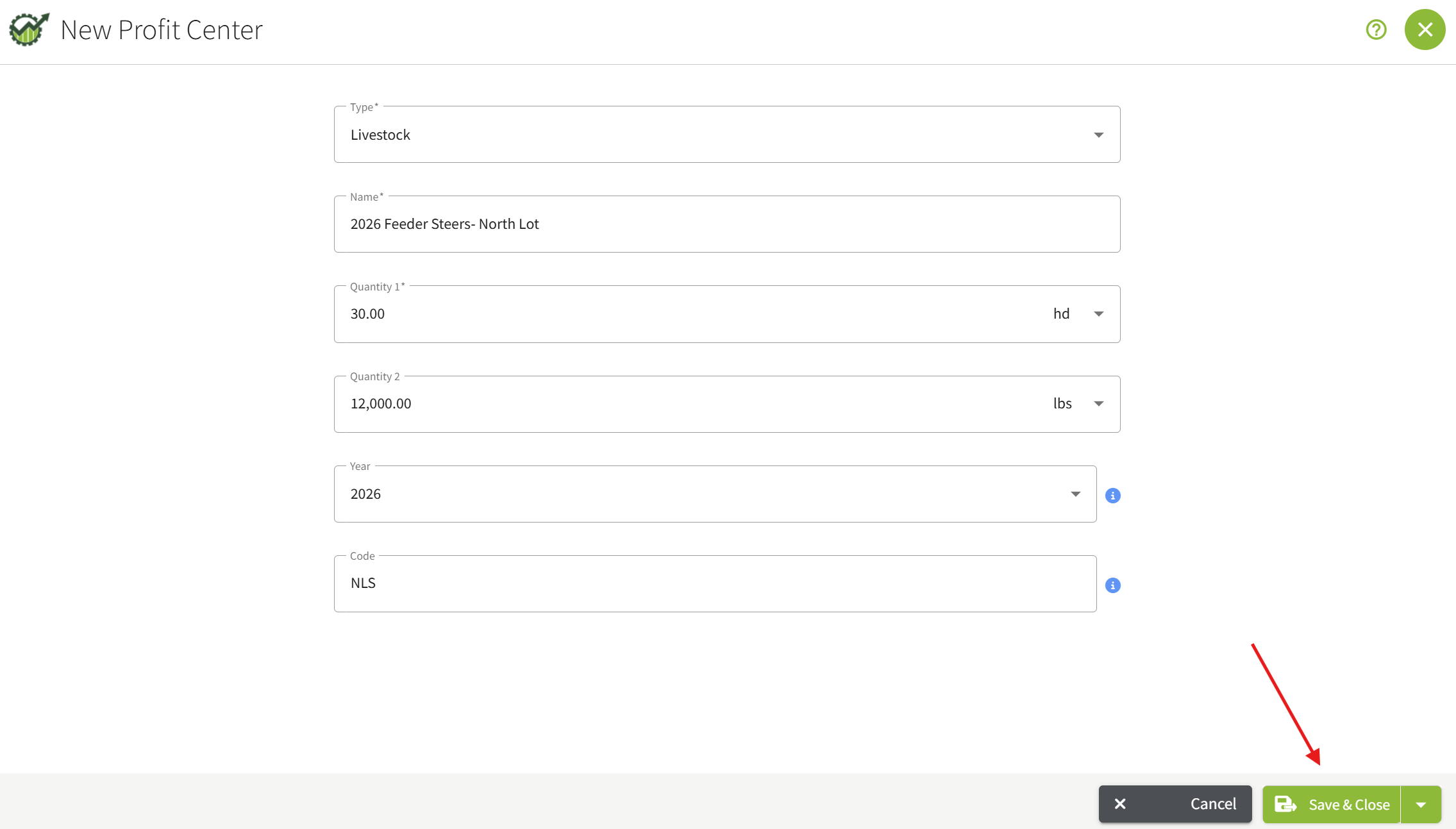
2. Fill in the fields:
- Type (required): Livestock is selected by default.
- Name (required): A unique name for the group, such as "2026 Feeder Steers - North Lot."
- Quantity 1 (required): Usually the number of animals in the group. Must be greater than zero. The unit defaults to head.
- Quantity 2 (optional): Usually the total weight of the animals in the group.
- Year and Code (optional): Together, these identify the group on select reports, appearing as a short name where space is limited.
3. Click Save & Close, or Save & New to add another.
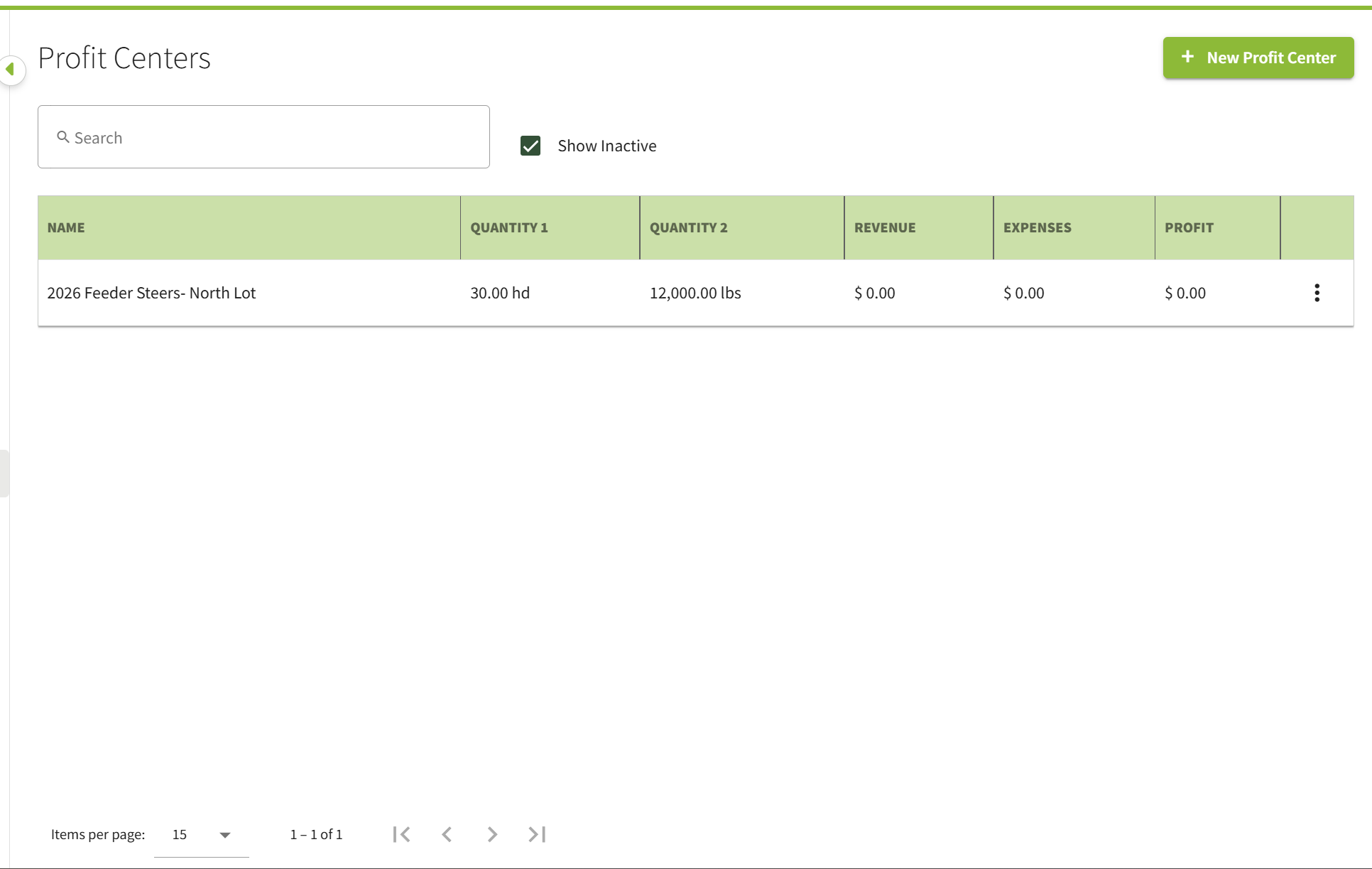
The new profit center appears in the Profit Centers table, sorted by name.
The new profit center appears in the Profit Centers table, sorted by name.
Note: Quantity 1 and Quantity 2 are used only to calculate per-unit figures, such as revenue, expense, and profit per head and per pound. They usually represent either:
- The total head and pounds you expect to sell from the group, or
- The current head count and weight, if you're reviewing the group partway through.
View and edit a profit center
Because Traction doesn't update quantities automatically, update a profit center yourself when its numbers change. Common reasons include:
- Death loss reduces the head count.
- Weight gain increases total pounds.
- You're doing a mid-period review and want the group to reflect where it stands today.
1. Go to Accounting > Profit Centers.
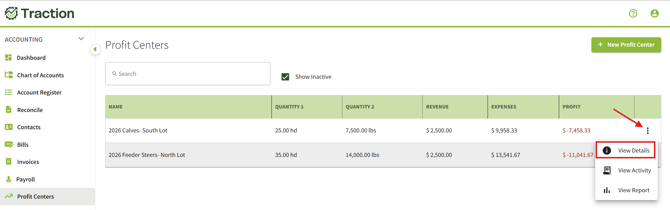
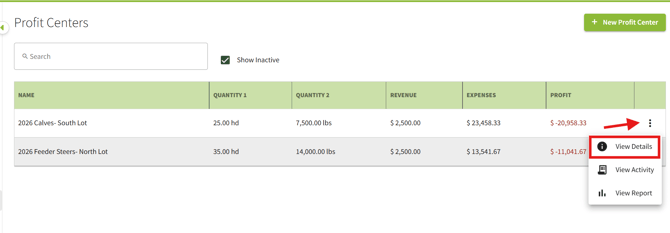
2. Click the three dots (...) to the right of the profit center, then click View Details.
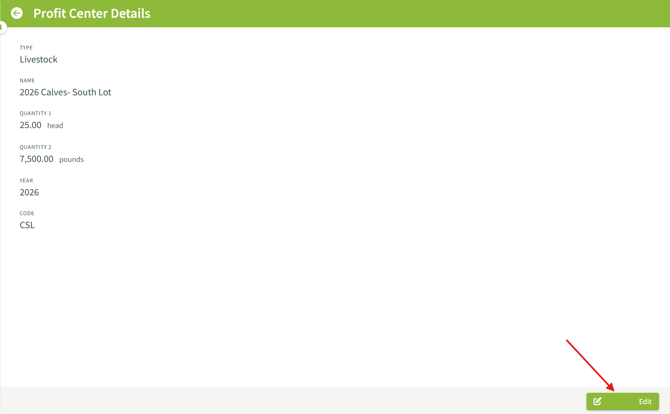
3. Click Edit at the bottom right of the screen.
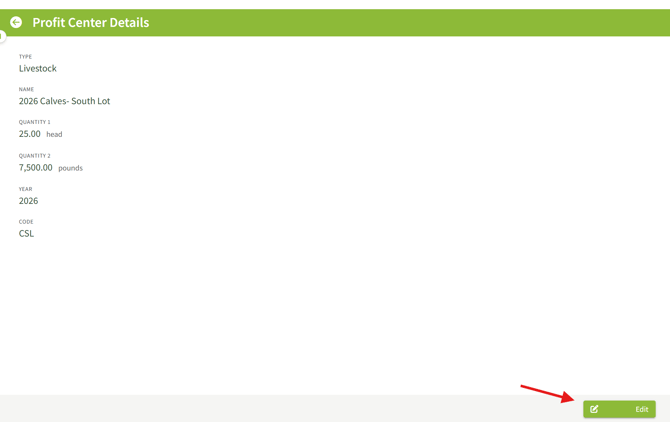
4. Make your changes, then click Save.
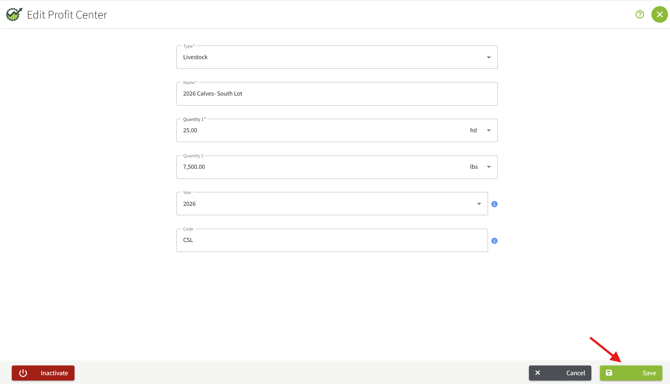
Your changes appear on the Details screen and in the Profit Centers table.
Allocate a payment or deposit
Allocate payments to assign expenses, and deposits to assign revenue, to your livestock groups.
An Other with Quantity line item lets you record the head and weight of animals on a transaction and allocate it to a group. When you allocate it to several groups, Traction splits the quantity in the same proportion as the dollar amount.
| Transaction | Use it to record | Reports show | |
| Payment |
|
Quantities, total dollars, and cost per head and per pound | |
| Deposit | A sale of animals: head and weight sold |
|
These quantities appear on the Profit Center - Detailed report and the GL Detail report.
Important: Quantities on a transaction don't update the group's Quantity 1 or Quantity 2. After you record a purchase, sale, or death loss, update the group's head and pound quantities yourself. See View and edit a profit center.
Option 1: Allocate using Other with Quantity
This example uses a payment. The steps are the same for a deposit.
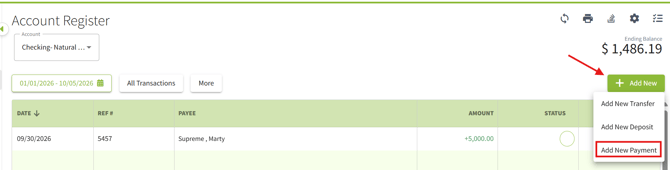
1. Go to Accounting > Account Register, click + Add New, and choose Payment (or Deposit).
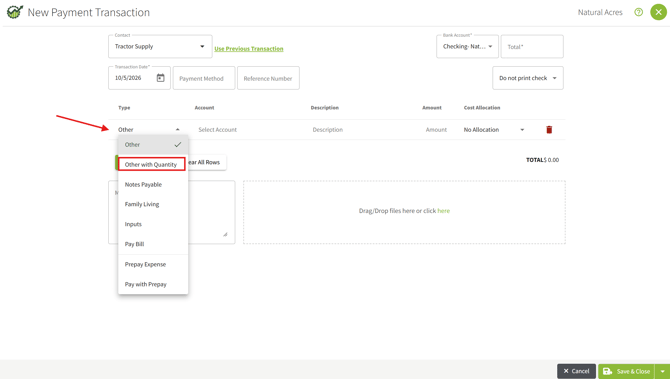
2. Enter the transaction details and change the line item Type to Other with Quantity.

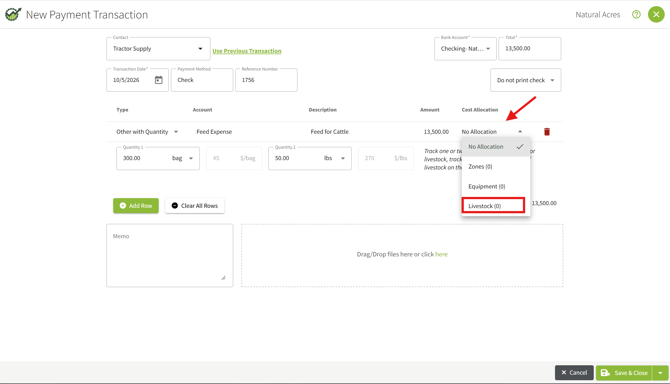
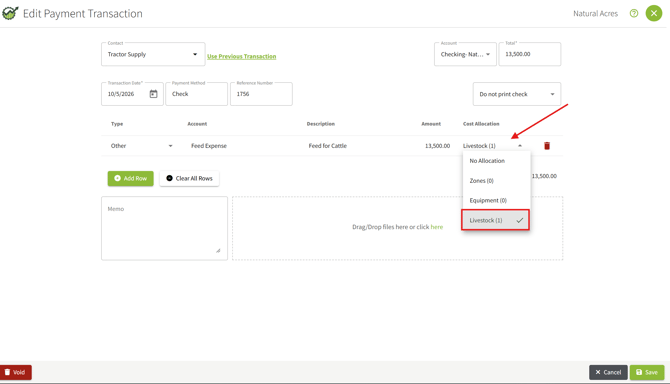
3. After filling in the required fields, click the Cost Allocation drop-down and select Livestock.
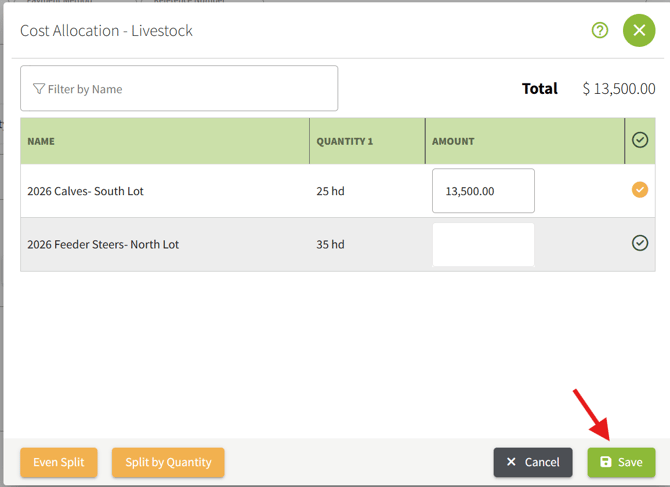
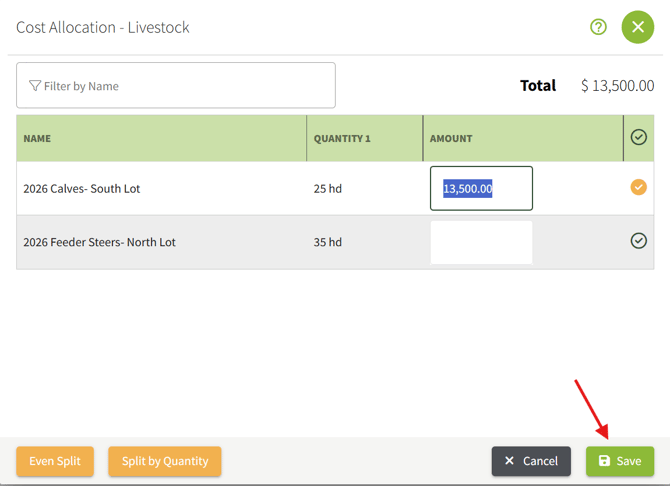
Choose how to split the amount:
-
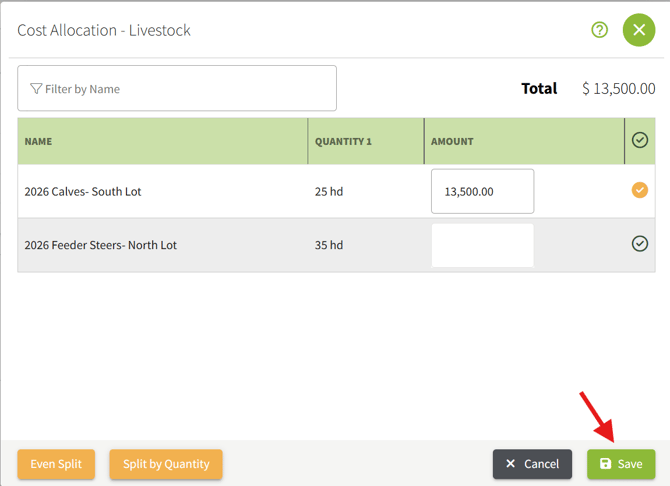
- Even Split: Divides the total equally among the selected profit centers.
- Split by Quantity: Divides the total in proportion to each profit center's Quantity 1. Traction uses the numbers as entered, even if units differ between profit centers.
- Manual: Enter an amount for each profit center.
Tip: Check the header. If the amounts don't add up to the line total, you'll see an Unallocated or Over Allocated amount.
Make any needed changes, then click Save.
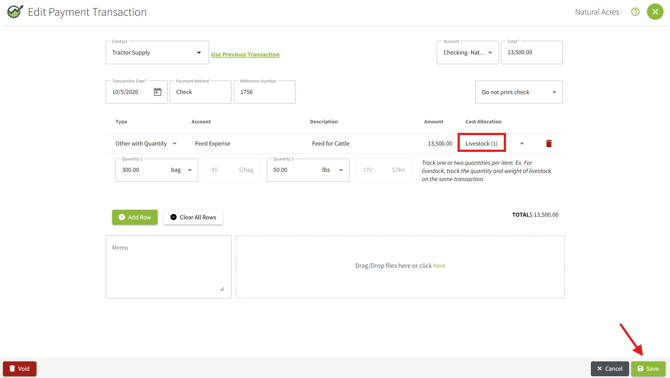
5. The Allocation column now shows Livestock (n), where n is the number of profit centers selected. Complete the rest of the transaction and click Save.
Option 2: Allocate directly to an expense or revenue account
This example uses a payment. The steps are the same for a deposit.
1. Go to Accounting > Account Register, click + Add New, and choose Payment (or Deposit).
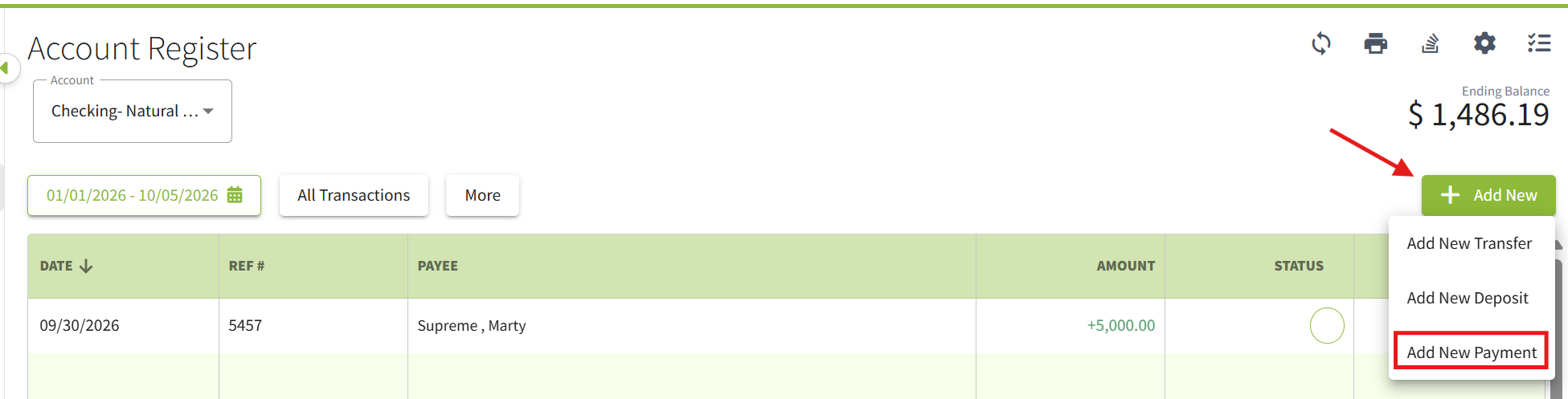
2. Fill in the required fields. Leave the line item Type as Other and select the expense (or revenue) account. Click the Cost Allocation field and select Livestock.
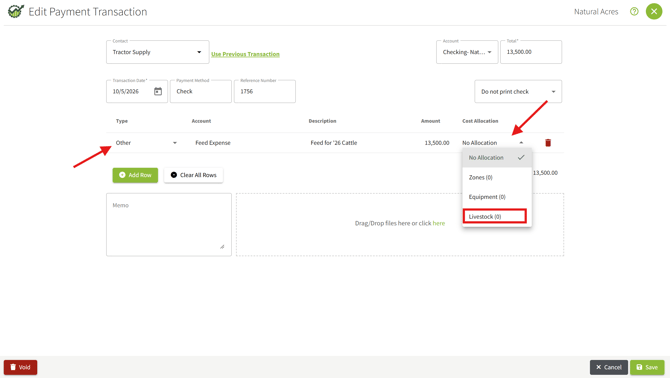
3. In the Cost Allocation- Livestock window, select the profit centers and choose a split method (Even Split, Split by Quantity, or Manual), as described in Option 1. Click Save.
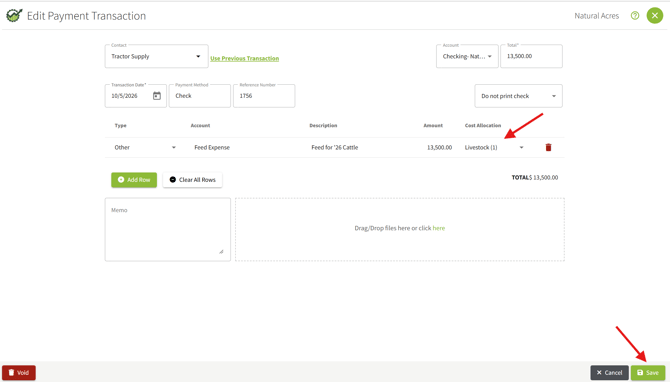
4. The Allocation column now shows Livestock (n). Complete the rest of the transaction and click Save.
Change an existing allocation
1. Go to Accounting > Account Register and click the payment or deposit.
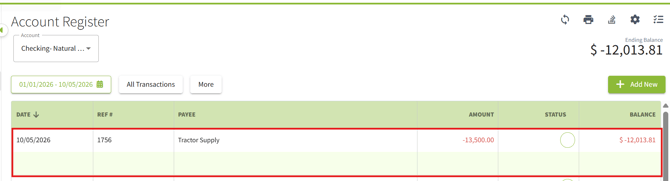
2. Open the Livestock allocation for the line, change or remove it, and click Save.
Note: Inactive profit centers appear when you edit a transaction that already uses them. They don't appear when you create a new transaction.
Review profitability on the Profit Centers screen
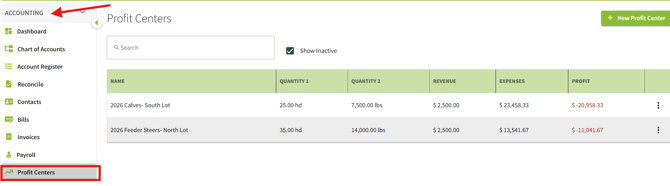
1. Go to Accounting > Profit Centers.
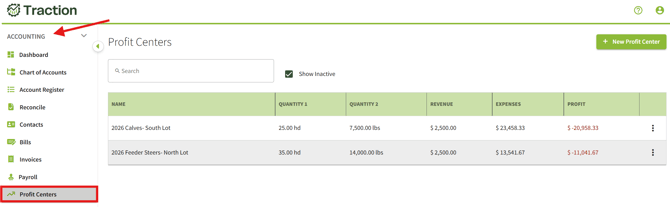
The table shows each profit center's:
- Name
- Quantity 1
- Quantity 2
- Revenue
- Expenses
- Profit (Revenue minus Expenses; negative profit appears in red with a minus sign)
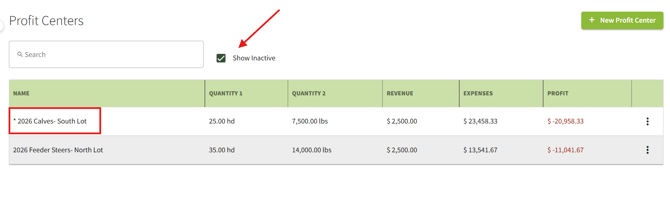
To narrow the list, type in the Search box to show profit centers whose names contain your text. Select or clear Show Inactive to show or hide inactive profit centers. Traction remembers this setting on your device.
View a profit center's activity
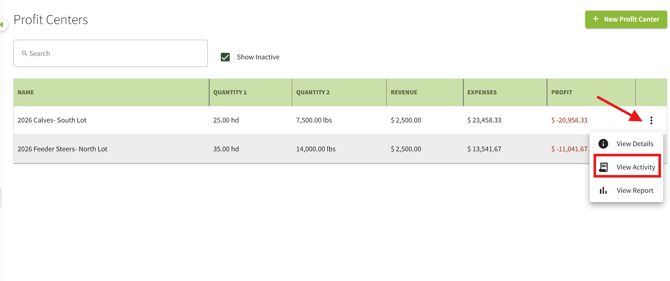
1. Go to Accounting > Profit Centers. Click the three dots (...) to the right of the profit center, then click View Activity.
2. The top of the Profit Center Activity screen shows Quantity 1 and Quantity 2, along with revenue, expenses, and profit per unit of each. Quantity 2 figures are hidden if the profit center has no Quantity 2.
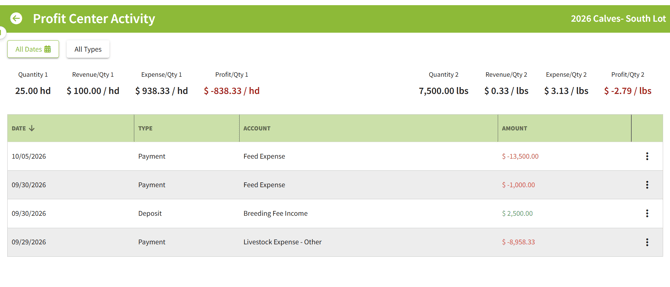 The table lists every allocation with its Date, Type (Payment or Deposit), Account, and Amount. Payments appear as negative amounts in red; deposits appear in green. A transaction allocated to several accounts shows one row per account.
- Use the Date range and Type filters above the table to narrow the list. Traction remembers your last filters on this device.
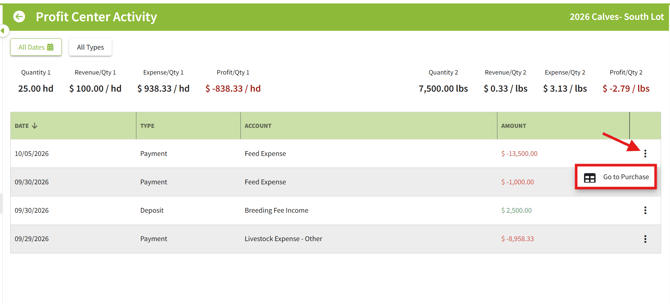
- To correct a transaction, click the three dots (...) on its row and choose Go to Purchase or Go to Sale.
View the Profit Center - Detailed report
You can open the report two ways.
Option 1
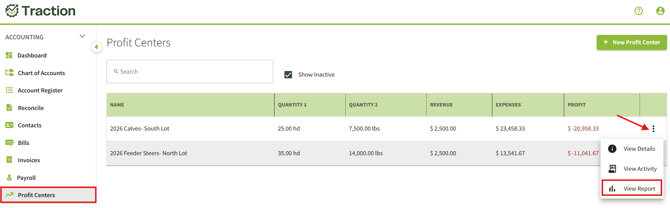
1. From the Profit Centers screen (one profit center): Click the three dots (...) to the right of the profit center, then click View Report.
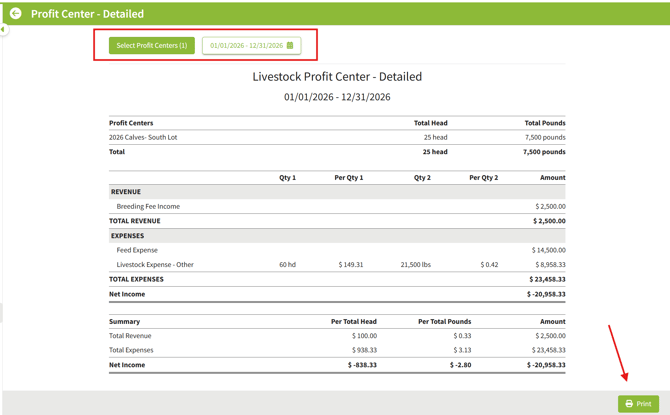
2. You can filter the report by profit center and date, and print it.
Option 2
1. From Reports (one or more profit centers): Go to Reports > Accounting > Profit Center and click the Livestock Detailed card.
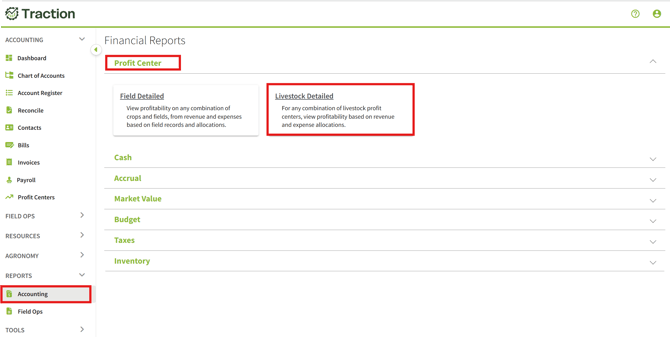
To build the report:
- Set the Date range. It defaults to your last selection in this browser, or the current calendar year.
- Click Select Profit Centers, choose one or more, and click Apply. Select Show Inactive to include inactive groups.
- Click Update Report.
- Print the report if needed.
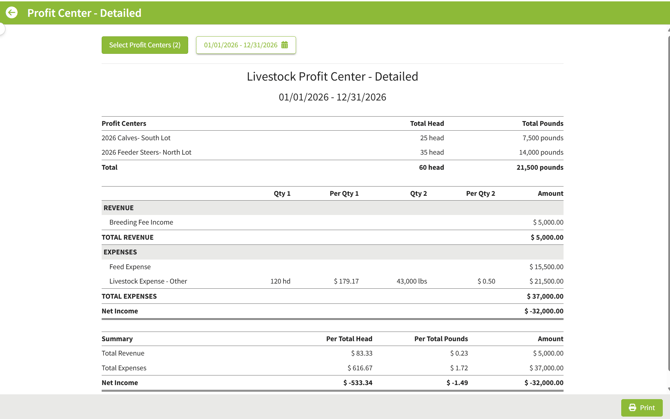
The report includes these sections:
|
Section |
What it shows |
|
Profit Centers |
Each selected profit center with its Quantity 1 and Quantity 2, plus a Total row |
|
Revenue |
Each revenue account allocated, with total quantity, per-quantity amount, and dollar amount, plus Total Revenue |
|
Expenses |
Each expense account allocated, with the same detail, plus Total Expenses |
|
Net Income |
Total Revenue minus Total Expenses |
|
Summary |
Total Revenue, Total Expenses, and Net Income divided by total Quantity 1 and Quantity 2 |
Tip: If per-head or per-pound numbers look off, check the group's Quantity 1 and Quantity 2 first.
Delete or inactivate a profit center
When a group is sold or closed out, remove it from your picklists so you don't select it by mistake.
1.Go to Accounting > Profit Centers.
2. Click the three dots (...) to the right of the profit center, then click View Details.
3. Click Edit.
-
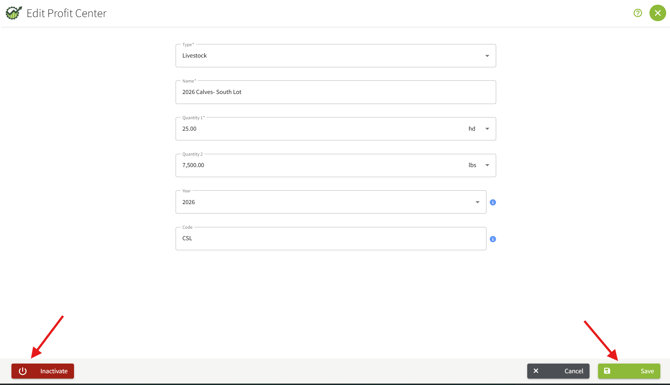
- Delete appears if nothing is allocated to the profit center. Confirm to remove it.
- Inactivate appears if revenue or expenses are allocated to it. Inactivating keeps its history for reports.
Inactive profit centers show an asterisk (*) before the name in the Profit Centers table.
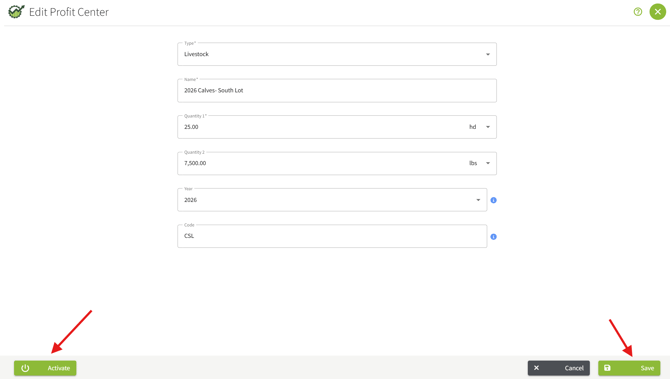
To reactivate a profit center:
1. Click the three dots (...) to the right of the profit center, then click View Details.
2. Click Edit.
3. Click Activate, then click Save.
Tips and FAQ
Does a profit center track my livestock inventory?
No. Profit centers analyze revenue and expenses only. Purchases, sales, and deaths don't change a group's head count or weight, even when you record them with Other with Quantity. Update the group's quantities yourself.
How do I update Quantity 1 (number of head) or Quantity 2 (total weight) for a group?
Go to Accounting > Profit Centers, click the three dots (...) for the group, and choose View Details. Click Edit, update Quantity 1 or Quantity 2, and click Save.
Why do my per-head numbers look wrong?
Check the group's Quantity 1 and Quantity 2. Traction calculates per-head and per-pound figures from these numbers, and they change only when you edit them.
Will my per-head numbers update if I change Quantity 1?
Yes. Per-quantity amounts on the Activity screen and in the report use the profit center's current quantities.
Can I use a profit center for breeding stock?
Yes, to track the costs of maintaining the herd, such as feed and vet fees. The purchase cost and value of the breeding animals stay on the asset side and aren't reflected in the profit center.
Can I allocate one line to several groups?
Yes. Select multiple profit centers in the Cost Allocation - Livestock window and use Even Split, Split by Quantity, or Manual.
Why doesn't an allocation appear in my profit center totals?
Totals and reports include only Revenue and Expense accounts. Check that the line uses one of those account types.
Why don't I see a profit center when creating a new transaction?
It may be inactive. Inactive profit centers appear only when you edit transactions that already use them.
Can I include the cost of feed I raised myself, such as corn or hay?
Yes. Feed you grew and fed to your livestock is a real cost of raising that group, even though you didn't buy it. To include it on a profit center, record one deposit that moves the crop out of harvested inventory and into a livestock feed expense, follow the steps listed here.