![Type=Full, Color=Light, Lockup=Default@2x.png]](https://info.tractionag.com/hs-fs/hubfs/Type=Full%2c%20Color=Light%2c%20Lockup=Default@2x.png?height=32&name=Type=Full%2c%20Color=Light%2c%20Lockup=Default@2x.png)
A new "Other with Quantity" detail type is now available when entering payments or deposits. It works just like the standard "Other" type — select an account, enter a description and amount — with the added ability to record up to two quantities with units of measure. Unit cost is calculated automatically for quick reference.
How you can use it:
- Track crop sales and input purchases (Traction Basic): Record quantities alongside transactions for easy reference. Note that this does not maintain inventory, but provides a point of reference for quantities sold or purchased.
- Tie expenses and revenues to meaningful units (all Traction levels): Capture acres for Rent Expense - Land or Custom Hire Expense, or gallons for fuel purchases, so you can monitor average costs over time.
- Improve Field Profit Center reporting: When expenses and revenues with quantities are allocated to fields, the Field Profit Center report will display both the quantity and unit value for the expense or revenue.
- Track livestock purchases and sales: Traction can now record both the number of head (Quantity 1) and total pounds (Quantity 2) on livestock transactions. While this does not maintain a livestock inventory, it captures the information as a point of reference and for future reporting purposes.
In the example below, I will walk users through how to purchase 2 head of cattle.
1. Navigate to the account register, click +Add New Payment. 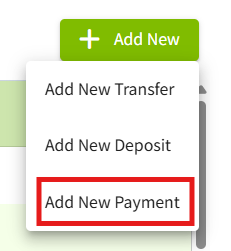
2. Click the dropdown arrow in the Type Box, select Other with Quantity.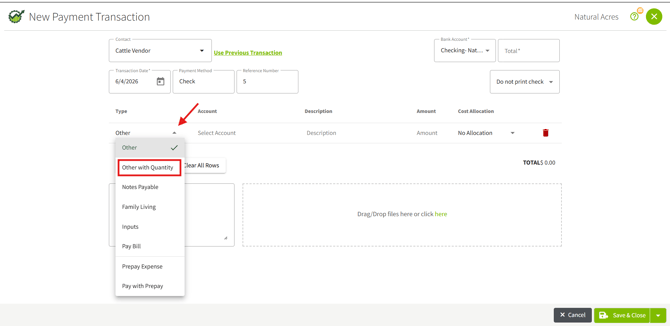
3. Select your Livestock Expense account. You will now see the quantity boxes listed below. Quantity box 1 and 2 populate the unit of measure. It can be changed by clicking the drop-down arrow within each quantity box, depending on your expense.
In this example, we are purchasing 1 head of cattle. Quantity with hd (head) as the unit of measure for and lbs (pounds) for Quantity box 2. 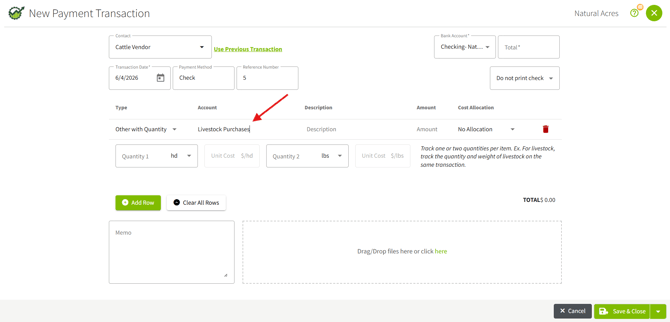
Enter the head (hd) of cattle quantity in Quantity box 1, then enter the pounds (lbs) in Quantity box 2. Lastly, enter in the amount. Entering in the total amount will calculate and populate the price per head and price per pound as shown below. Click save & close. 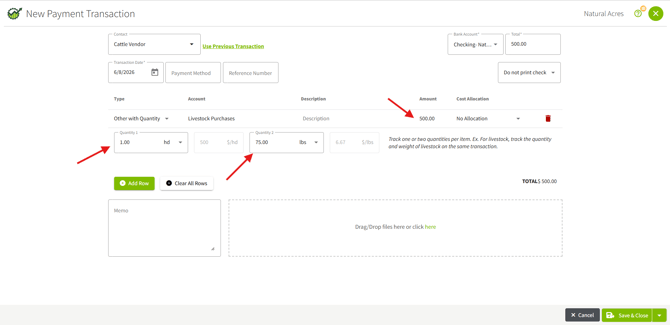
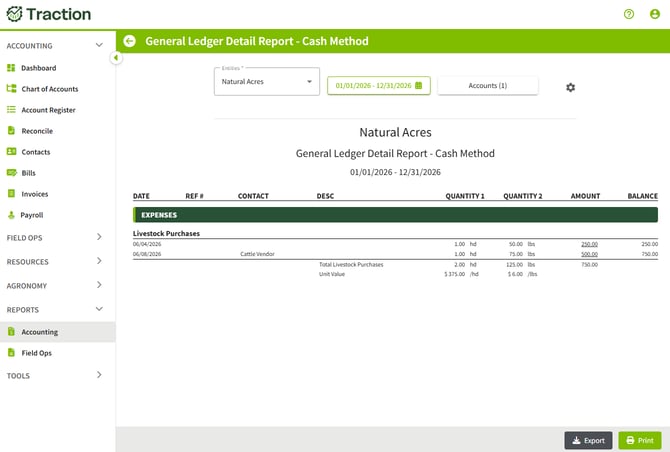
You will be able to see this reported out in the General Ledger Detail Report by going to Reports > Accounting > Cash > General Ledger Detail Report.