![Type=Full, Color=Light, Lockup=Default@2x.png]](https://info.tractionag.com/hs-fs/hubfs/Type=Full%2c%20Color=Light%2c%20Lockup=Default@2x.png?height=32&name=Type=Full%2c%20Color=Light%2c%20Lockup=Default@2x.png)
Traction does not currently track fuel and oil as inventory items.
Jump to a Section
Setting up Fuel & Oil as Supply and Expense Account
The following example will walk you through how to properly create Fuel & Oil in your chart of accounts so it appears on your Schedule F Report for year end reporting.
In Traction
The structure has three levels:
- Account headings: the main sections of your chart of accounts, like Assets, Liabilities, Supplies, Revenue, and Expenses.
- Subheadings: these work like a folder. A subheading sits under an account heading and groups related accounts together in your chart of accounts and on your reports. Subheadings are optional, they are not used for coding transactions, and they are not tied to an account type.
- Accounts: these are what you code your transactions to. You create them and place them under a subheading if you want them grouped.
Example
- Expenses (account heading)
- Fuel & Oil (subheading/folder, used only for grouping)
- Diesel (account used for coding)
- Road Fuel (account used for coding)
- Fuel & Oil (subheading/folder, used only for grouping)
Create the Fuel & Oil Subheading (folder)
1. Go to Accounting > Chart of Accounts.
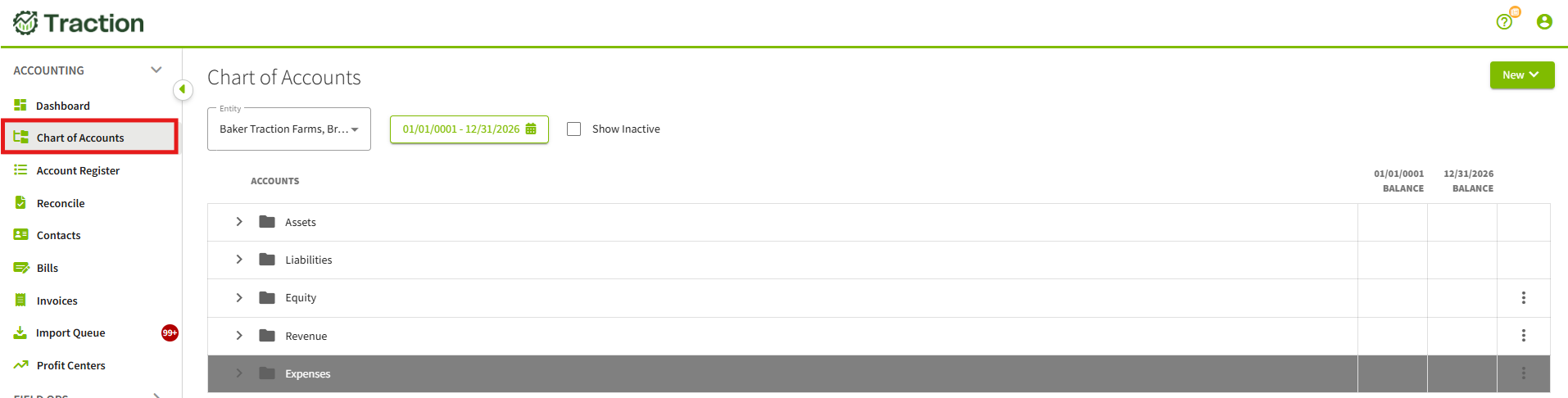
2. Find Expenses then click the three dots to the right, select Add Subheading.
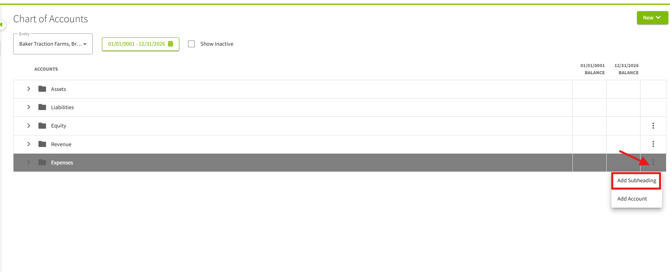
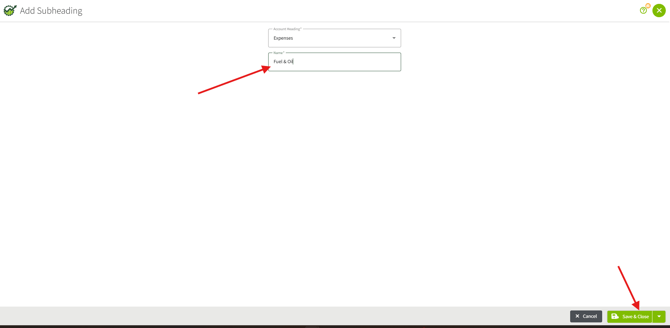
3. In the Name box enter Fuel & Oil, then click Save & Close at the bottom right.
4. The Fuel & Oil subheading now appears under Expenses. In the next section, you’ll add accounts to it. 
Tip: Subheadings group accounts and can’t be used for coding. You can tell them apart by the icon: a subheading has a solid, filled-in folder, and an account has a folder with a folded tab. 
Create specific Fuel & Oil accounts
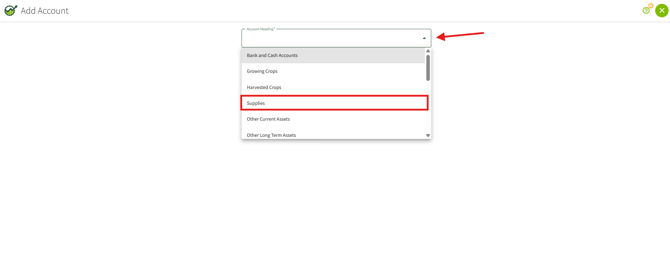
When you choose Supplies as the account heading, Traction creates two linked accounts: a Supplies (inventory) account and an expense account. The expense account is the one that appears under Expenses and on your reports.
1. Navigate to Accounting > Chart of Accounts.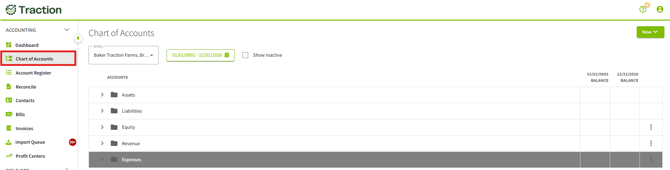
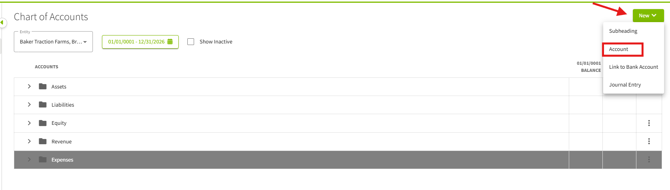
2. Click New at the top right, then select Account.
3. Click the drop down box for Account Heading, Select Supplies.
4. Select the Entity or Entities for this account.
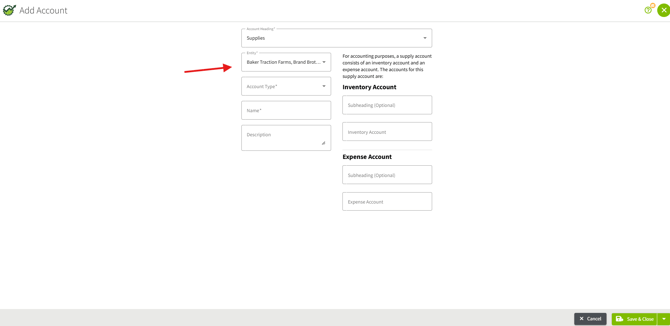
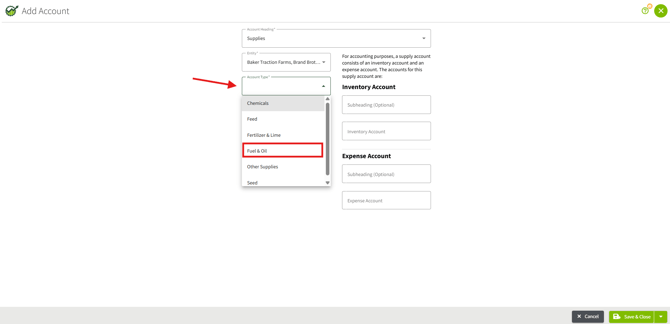
5. In the Account Type drop-down, select Fuel & Oil. This is what places the account on the correct line of your Schedule F.
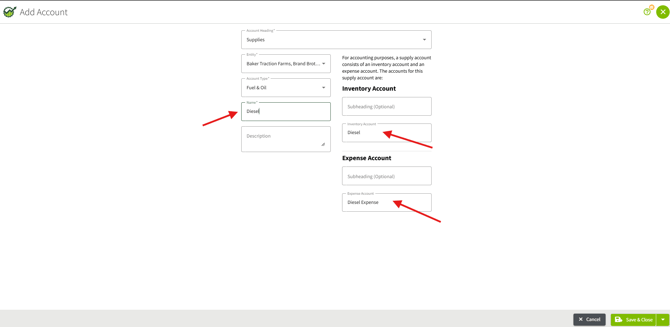
6. In the Name box, enter the account name. For this example, enter Diesel. Traction automatically fills in the names of the Inventory Account and the Expense Account (for example, Diesel Expense).
Note: The Inventory Account does not track inventory yet. It’s a placeholder for future development.
7. Under Expense Account at the bottom right, click Subheading (Optional) and select Fuel & Oil. Click Save & Close. 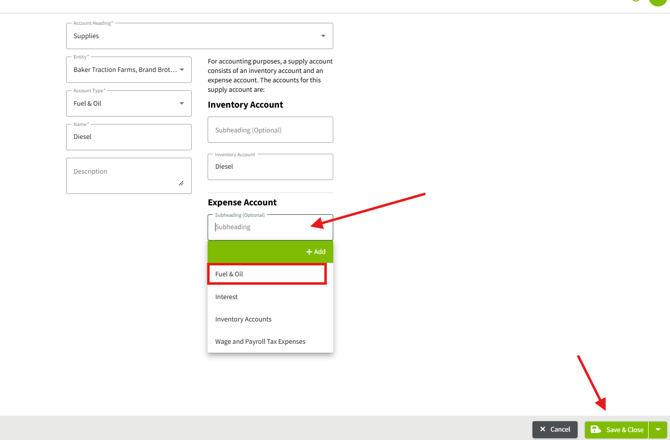
8. Repeat steps 2 through 8 for each fuel or oil account you need, such as Road Fuel or Oil & Lubricants.
9. Go back to Expenses in your Chart of Accounts. You’ll see Diesel Expense listed under the Fuel & Oil subheading. 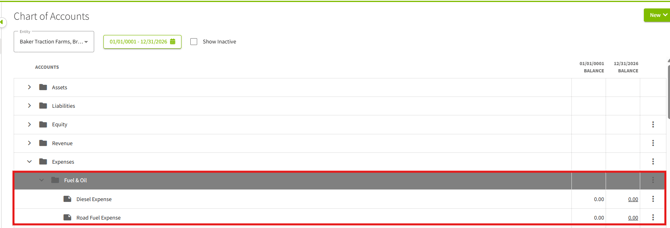
10. When you enter fuel purchases, code them to [the expense account, e.g., Diesel Expense / Road Fuel].
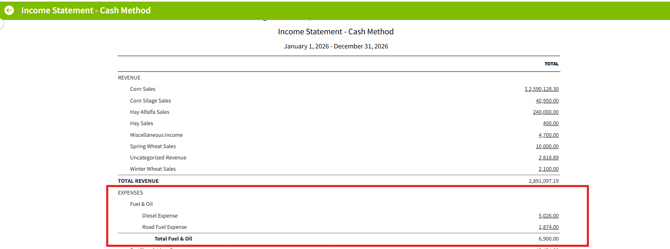
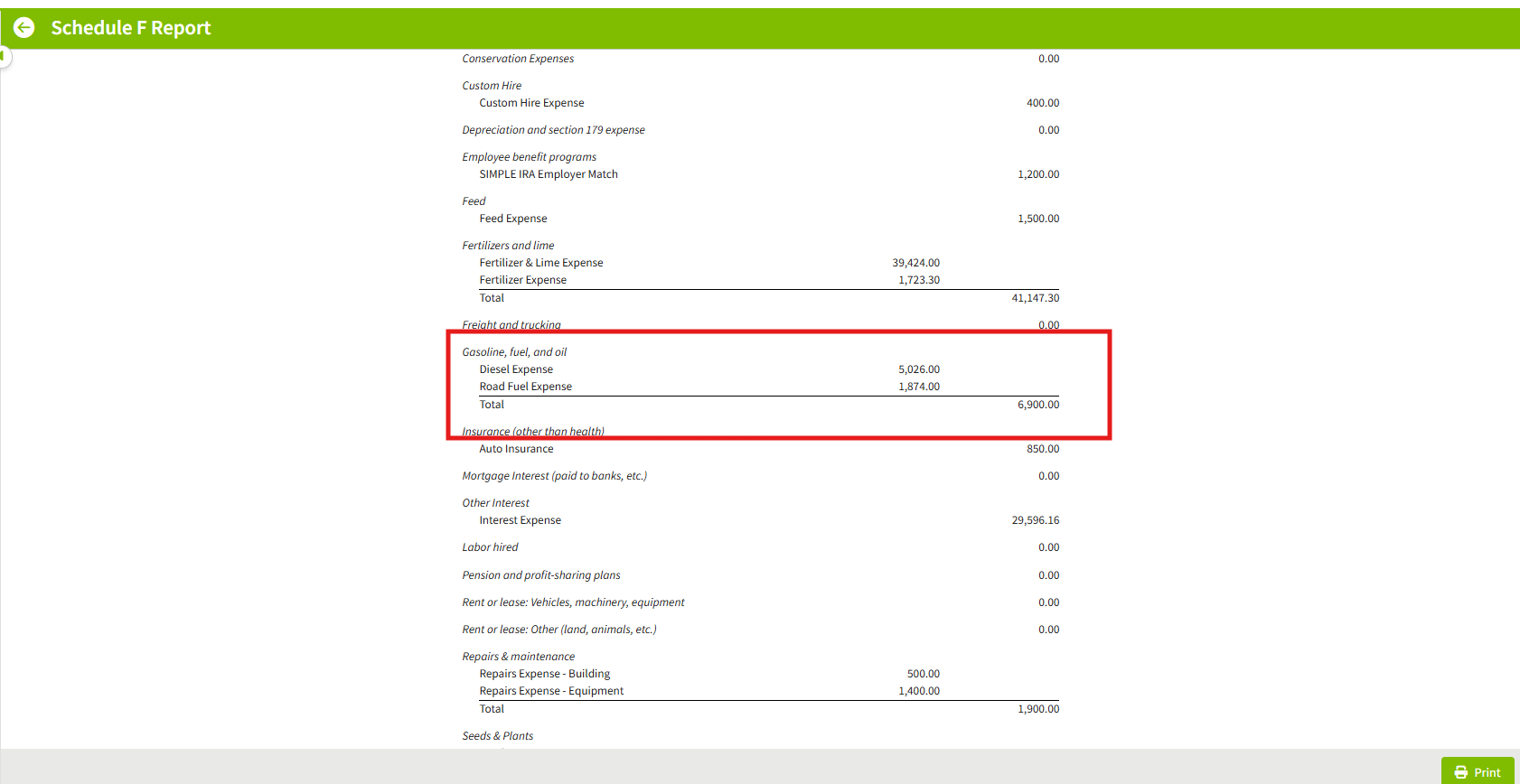
You can see this breakdown on the Income Statement, and the totals will report under Fuel & Oil on your Schedule F Report.