![Type=Full, Color=Light, Lockup=Default@2x.png]](https://info.tractionag.com/hs-fs/hubfs/Type=Full%2c%20Color=Light%2c%20Lockup=Default@2x.png?height=32&name=Type=Full%2c%20Color=Light%2c%20Lockup=Default@2x.png)
This process is only for Paylocity Users. To create commodity wages during payroll processing, users will need to work directly with Paylocity.
Recording Commodity Wages from Paylocity is a 2 step process. Step one is importing the payroll from Paylocity. Step two is recording a $0 deposit to remove the Harvested Crop Inventory.
First, we will need to import the Commodity Wage check into the Traction Payroll System.
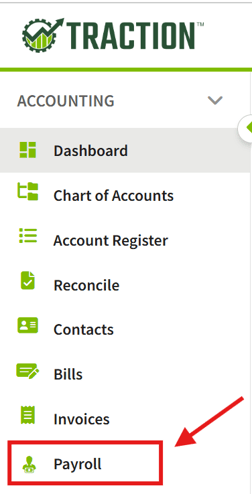
1. Navigate to Accounting Menu and click on Payroll.
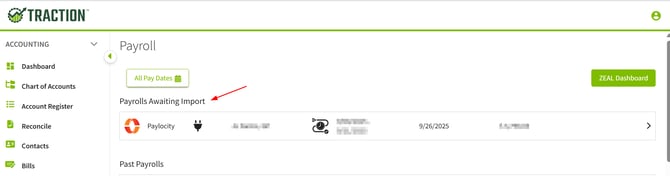
2. Click on the Appropriate payroll in the Payrolls Awaiting Import section.
3. (A) As shown below, for the Earnings Type select Earnings in the Category drop down box. You will then select Wage Expense for the Expense Account field.
3. (B) As shown for the second line item, for the Deductions Type, make sure Deduction is selected for the Category. You will then select desired Crop Sales account for the Liability Account.
3. (C) Save & Import.
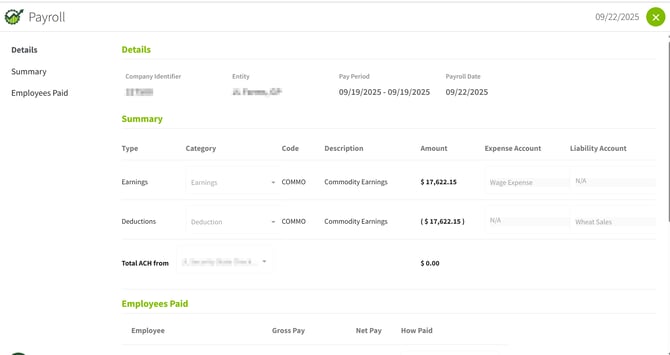

Once the steps above are completed, this will update the accounting records to increase Crop Sales and also increase Wage Expense.
Next, we will need to update the Crop Inventory by creating a Deposit Transaction Traction.
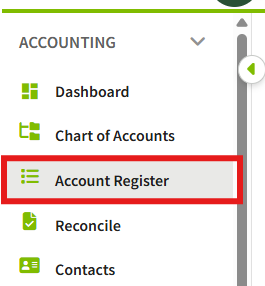
1. Navigate to the Accounting Menu > click on Account Register for the same bank account that you use for Payroll. Proceed to Add a New Deposit.
2. Fill out the New Deposit screen with the following information:
Contact: The Employee. You will need to add them to the Customer category to have them show in the list of Contacts here.
You will have two transaction lines for this Commodity Wage entry.
Transaction Line #1:
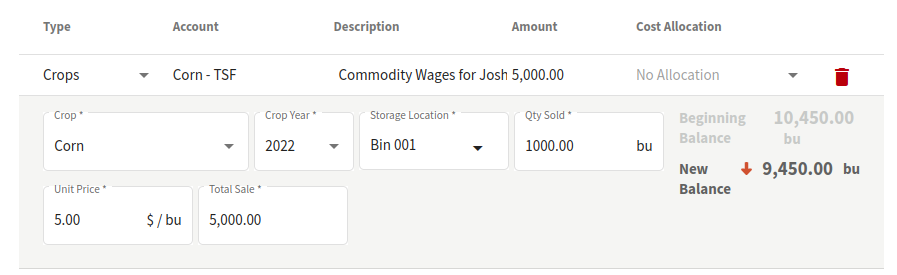
For the first line of the transaction, you will enter the amount of the information related to the commodity you are using for wages. In our example, we will be using 1000 bushels of corn, at a rate of $5.00 per bushel.
| Type | Account | Description | Amount |
| Crops | The account related to the Commodity Crop | Commodity Wages for Employee Name | This will auto-calculate based on the information you enter for the crop |
| Crops | Crop Year | Storage Location | Qty Sold | Unit Price | Total Sale |
| Commodity Wage Crop | Crop Year | The Storage Location that contains the commodity | The amount of the commodity | The price of the commodity | This amount will be calculated |
Transaction Line #2
For the second line of the transaction you will need to enter an offsetting negative amount to your Crop Sales account.
| Type | Account | Description | Amount |
| Other | The account you use for your Crop Sales for this commodity | Commodity Wages for Employee Name | Enter the negative amount for what you have in Line #1. In our example, this would be -5000 |

3. Review your transaction. If everything looks good, click the Save button, confirm that you want to add a $0 deposit, and then answer No to using this transaction for your average commodity sale price for this crop (unless you want Traction to do so), and you will be all set.
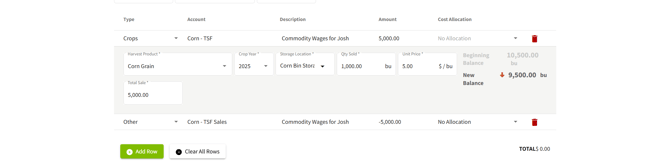
This transaction will take the crop out of inventory and update the average price for Field Profitability. It will have no effect on Cash Books (it’s a plus and a minus to the crop sales).