![Type=Full, Color=Light, Lockup=Default@2x.png]](https://info.tractionag.com/hs-fs/hubfs/Type=Full%2c%20Color=Light%2c%20Lockup=Default@2x.png?height=32&name=Type=Full%2c%20Color=Light%2c%20Lockup=Default@2x.png)
You can manually record harvest activity directly from the Traction Mobile App. Harvest records allow you to record the acres harvested, harvest date and time, equipment used, and harvested production for a field while you're on the go.
To manually enter Harvest Records, follow these steps:
1. On the Field Records tab, select the green Add Activity button in the bottom right hand corner of the Field Records tab of the mobile app. 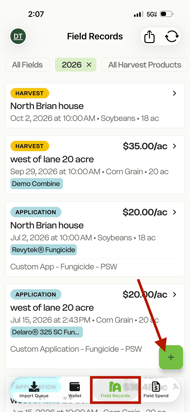
2. Choose the field you are harvesting. Use the filters at the top of the page to narrow down your list by crop year or harvest product if needed. If you are choosing one field, click on that field and you will be prompted on the next step.
If you would like to enter in multiple records at once, you can click the Select button, choose the fields and then tap the green Next button that appears on the screen. This will then send you to the next step to enter in more details for the fields selected. 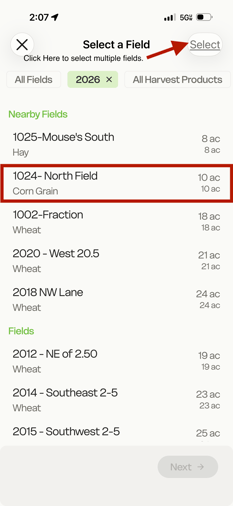
3. Select Harvest from the activity options grid that appears at the top of the page. 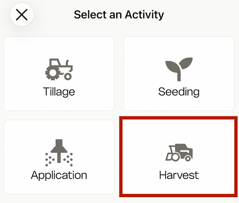
4. Next, you will start to enter in your harvest details. The field and harvest product you selected will appear at the top of the Enter Details screen.
Complete the duration, equipment and personnel before moving into the yield and load section of the record.
Don't click save yet, keep scrolling down in the record screen.
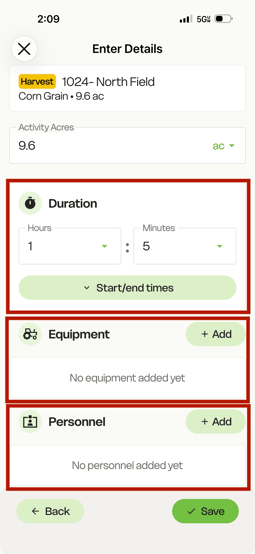
5. After entering the basic harvest activity information, enter the production information for the field.
At the top of the yield section, you will see the Average Yield and Total Dry Yield. You can enter in this information or look below this area to add in individual loads that will populate that information for you.
To add individual loads, click the green Add button next to Loads in the app. Next, select the destination where the harvested crop was delivered or stored. Enter the load quantity and other details and then repeat this process for additional loads from this field.
Click the green Save button once all loads are added and you are ready to save.
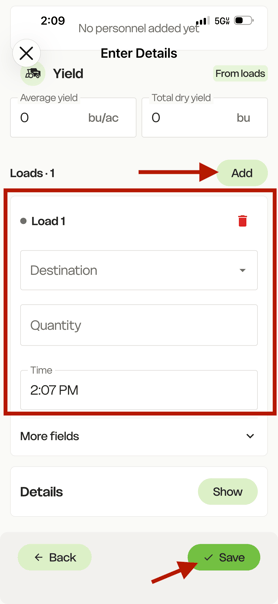
Storage destinations need to be set up in the we application of TractionAg.
If you leave the destination blank, crop inventory for this record will appear under Unassigned in your Traction storage page on the web application.
If your records are not showing in your Traction account on the desktop/laptop, be sure to make sure the app has synced.
Once Field records have been manually imported or added through the import queue, you can edit them further from your desktop platform.
To import Field Records from Import Queue on Traction Mobile:
1. Open the Traction Mobile App on your Apple or Android device.
2. Navigate to the Import Queue icon at the bottom of your screen.
3. Click on the harvest task you wish to import from the list in your queue.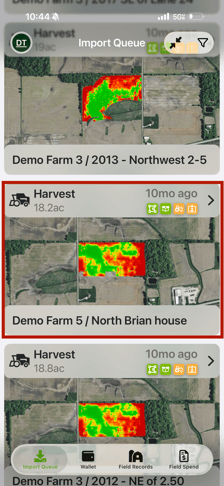
4. Review the field/zone, yield data, equipment and personnel details that are attached to the record by clicking the arrows to the right of each area to expand the details. Review the data present and check to make sure the field/zone and input icons are highlighted in green.
Make any adjustments that are needed then select the green Import in the bottom right. If you would like to delete this record, click the yellow Archive button in the bottom left. (Once you have archived, you can not get this record back and manually importing would be the only option to do so.)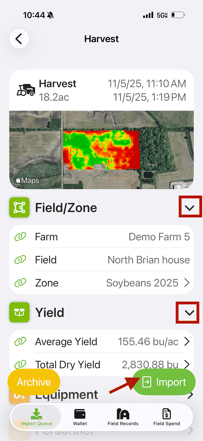
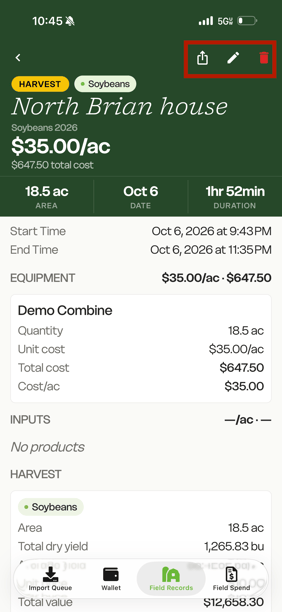
6. To see the harvest field record details after importing, click on the Field Records tab and select the record you wish to view. From this screen you can also export field record details (PDF/CSV), edit the record and loads or select the delete icon to remove the record.