![Type=Full, Color=Light, Lockup=Default@2x.png]](https://7191758.fs1.hubspotusercontent-na1.net/hub/7191758/hubfs/Type=Full%2c%20Color=Light%2c%20Lockup=Default@2x.png?height=32&name=Type=Full%2c%20Color=Light%2c%20Lockup=Default@2x.png)
This feature requires Traction Pro. Visit our Plans and Pricing page to learn more.
If a land agreement is added or updated, any existing field records for that field and crop year will automatically update. This means:
-
Fixing an incorrect ownership percentage will automatically update existing field records.
-
Adding an agreement after field records were created will update those records automatically.
When making these changes, you will be prompted to confirm whether you want to apply the updates to existing field records.
How do I create a Land agreement?
How do I carry forward Land Agreements to a new Crop Year?
How do I create a new Land Agreement using existing ones?
How do I create a Land Agreement?
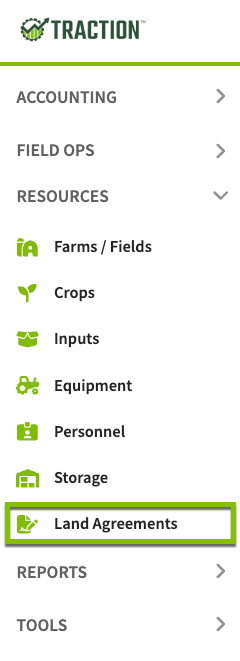
1. Using the navigation menu on the left hand side of your screen, open the Resources menu and select Land Agreements.
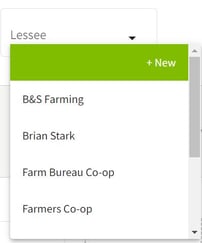
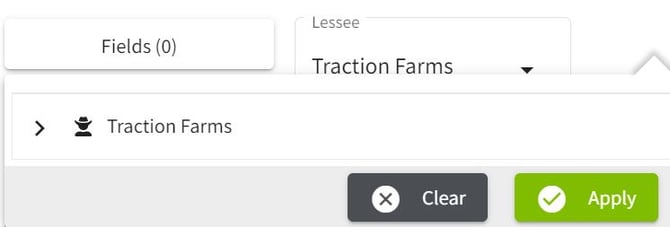
2. Click on the + New Agreement button at the top of the screen. Click on the arrow to the right of Lessee to select the Entity/Grower. If it is not listed, click on the +New button. I chose my entity name: Traction Farms.
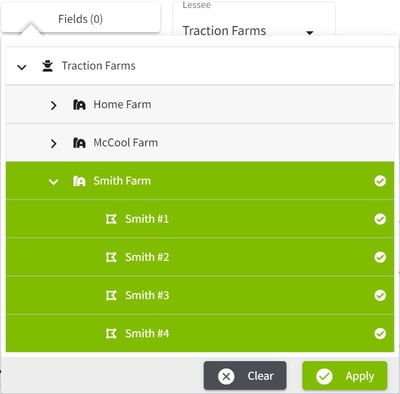
3. Click on the Fields (0) button to select your Field(s) or Farm(s). Click on the arrow to the left of the Grower name to show the farms. Similarly click on the arrow to the left of the farm name to show the field names. Click on the Farm Name to select all of the fields in that farm on select individual farm(s). The selections will be highlighted in green. When you have made your selection(s) click on the Apply button. The Fields box will now show the number of fields selected in parenthesis.
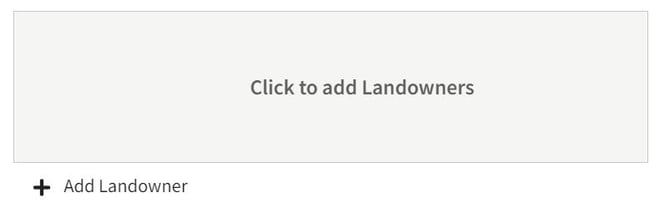
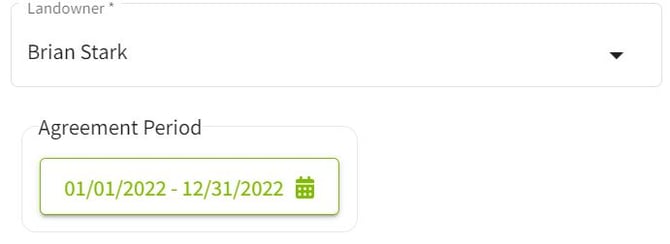
4. Click the + Add Landowner to enter the Landowner and details. Select the Landowner from the list or add new. Next, select the Agreement Period date range.
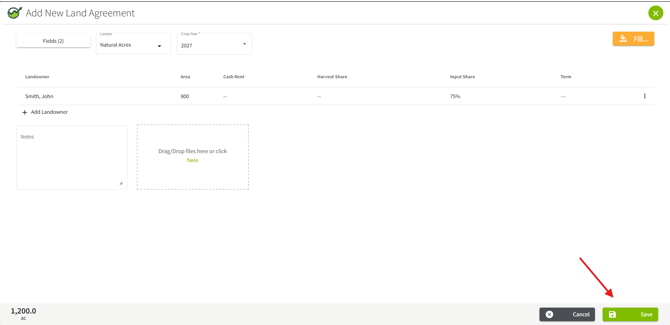
5. Fill in the details for the Land Agreement using the percentages for all of the categories. Input shares allows you to Bill Landowner for specific inputs. Click on the Save button when you have entered all values.
When there are multiple Landowners/Landlord’s on a field, the Landowners area (acres and %) represents each landowner’s share of the field.
If you only have a single landowner/landlord the Landowners Area will be the total area of the field
The Harvest and Input shares will be the total shares for the agreement.
Example #1 - Single Landowner.
For instance, we have a 100 acre field. The Landowner's area is 100%, their harvest share is 50%, and their input share is 50%, you would need to setup the following in your agreement.
| Field Area | 100 acres |
| Landowner Area | 100 acres |
| Harvest Share | 50% |
| Input Share | 50% |
This would mean that the Landowner's share for harvest and input is 50% of their 100 acres.
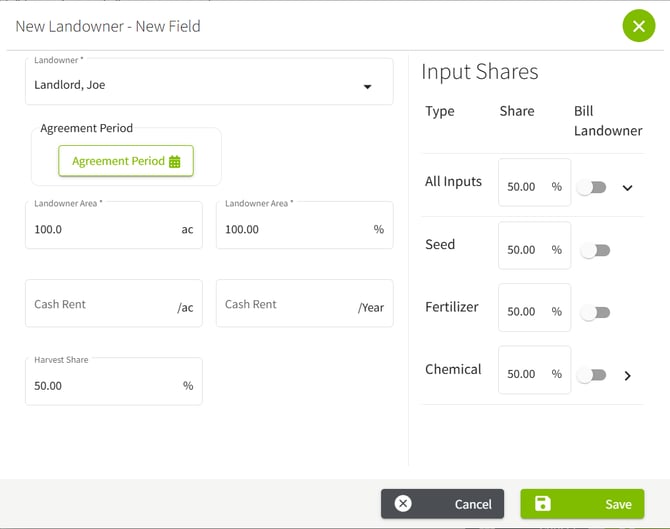
6. You can upload a copy of the Land Agreement and add any notes in the designated area. When all details are entered click on the Save button.
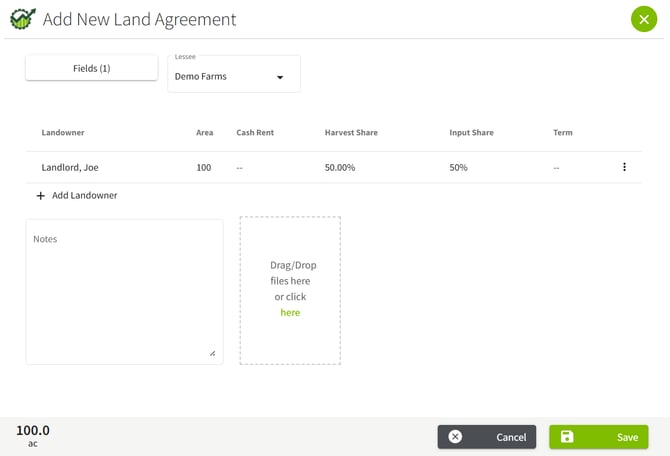
7. The Land Agreements were created for each of the fields and are listed separately in the Land Agreements screen. You can view/edit the details by clicking on the three dots to the right of each agreement line.

Example #2 - Multiple Landowners.
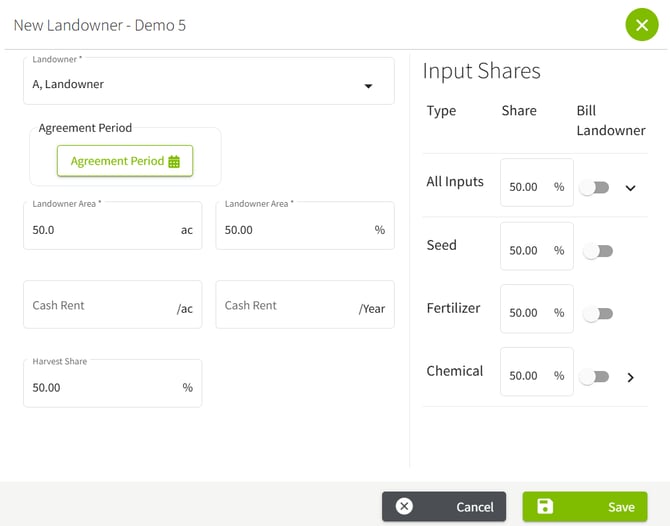
For instance, field area is 100 acres, with a 50/50 Land agreement with 2 landowners/landlords. Each landowner owns ½ the field. When there are multiple Landowners/Landlord’s on a field, the Landowners area (acres and %) represents each landowner’s share of the field.
| Field Area | 100 acres |
| Landowner A area | 50 acres |
| Harvest Share | 50% |
| Input Share | 50% |
| Landowner B area | 50 acres |
| Harvest Share | 50% |
| Input Share | 50% |
1. In this example, Landowner A will own 50 acres of the 100 acre field and split the Harvest and Inputs 50% with the Lesee/ Grower getting the other 50% of the 50 acres.
2. Landowner B also owns 50 acres of the 100 acre field and will split the Harvest and Inputs 50% with the Lesee/ Grower getting the other 50% of the 50 acres.
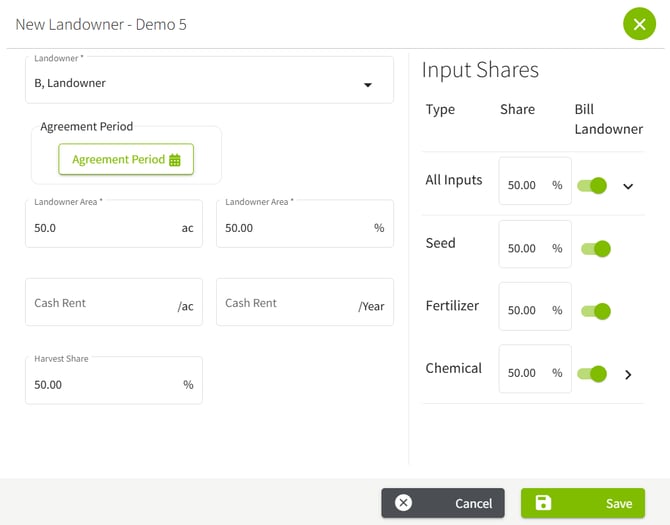
3. When you have entered the Land Agreement as needed, click Save.

4. An example harvest record with the changes we have implemented in the Landowners Agreement.

How do I carry forward Land Agreements to a new crop year?
Land agreements from the previous crop year are automatically copied forward when setting up the new crop year. Visit this Knowledge Base article to learn how to manage crop zones.
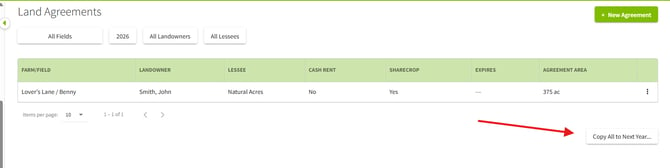
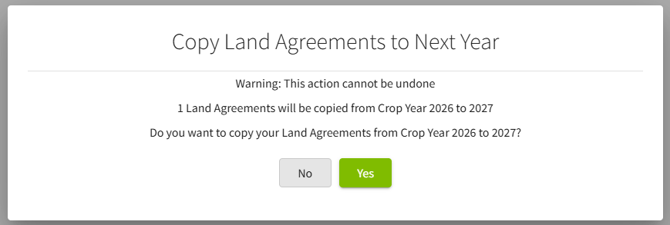
You can also copy agreements manually using the “Copy All to Next Year” option.
How do I create a new Land Agreement using existing ones?
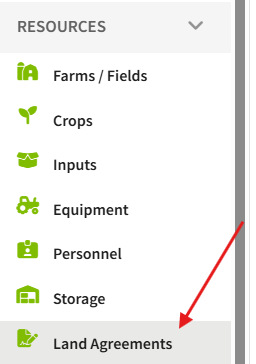
1. Navigate to Land Agreements underneath the Resources tab.
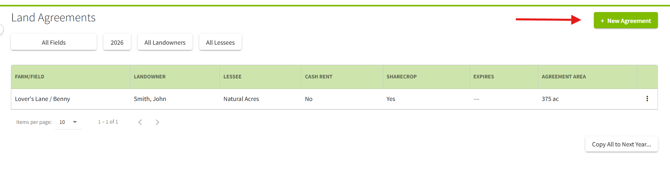
2. Click +New Agreement at the top right hand corner.
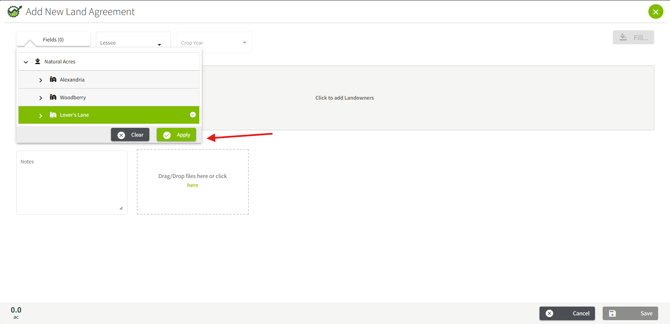
3. Select the desired fields and click Apply.
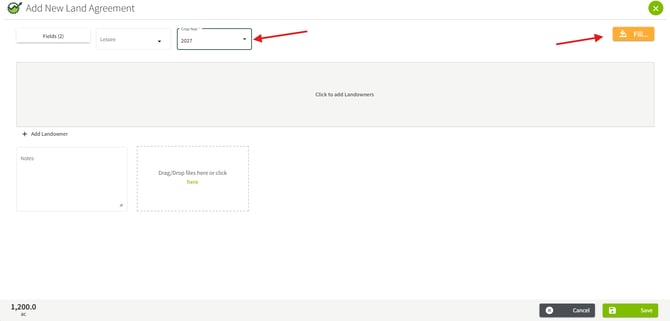
4. Select the Crop Year and click Fill.
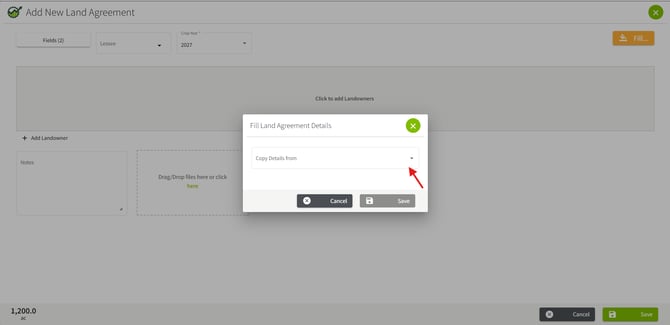
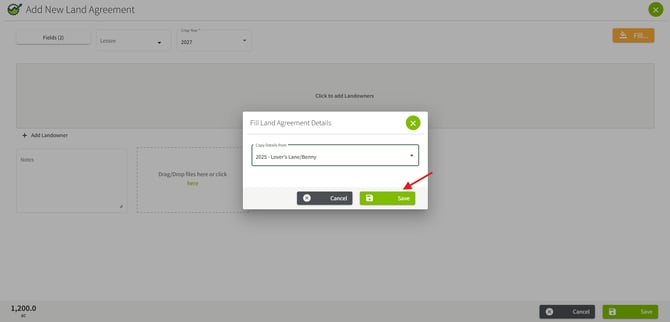
5. A new box will prompt you to select from the drop down list where you can select where to Copy Details from. Click Save.
6. Click Save at the bottom right hand side.