![Type=Full, Color=Light, Lockup=Default@2x.png]](https://info.tractionag.com/hs-fs/hubfs/Type=Full%2c%20Color=Light%2c%20Lockup=Default@2x.png?height=32&name=Type=Full%2c%20Color=Light%2c%20Lockup=Default@2x.png)
This feature is available to users with a minimum of Basic Accounting.
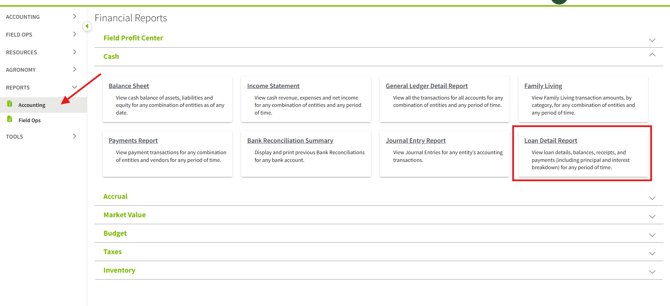
1. On the left hand menu click on Reports and then click on Accounting. Expand the Cash section and click on Loan Detail Report.
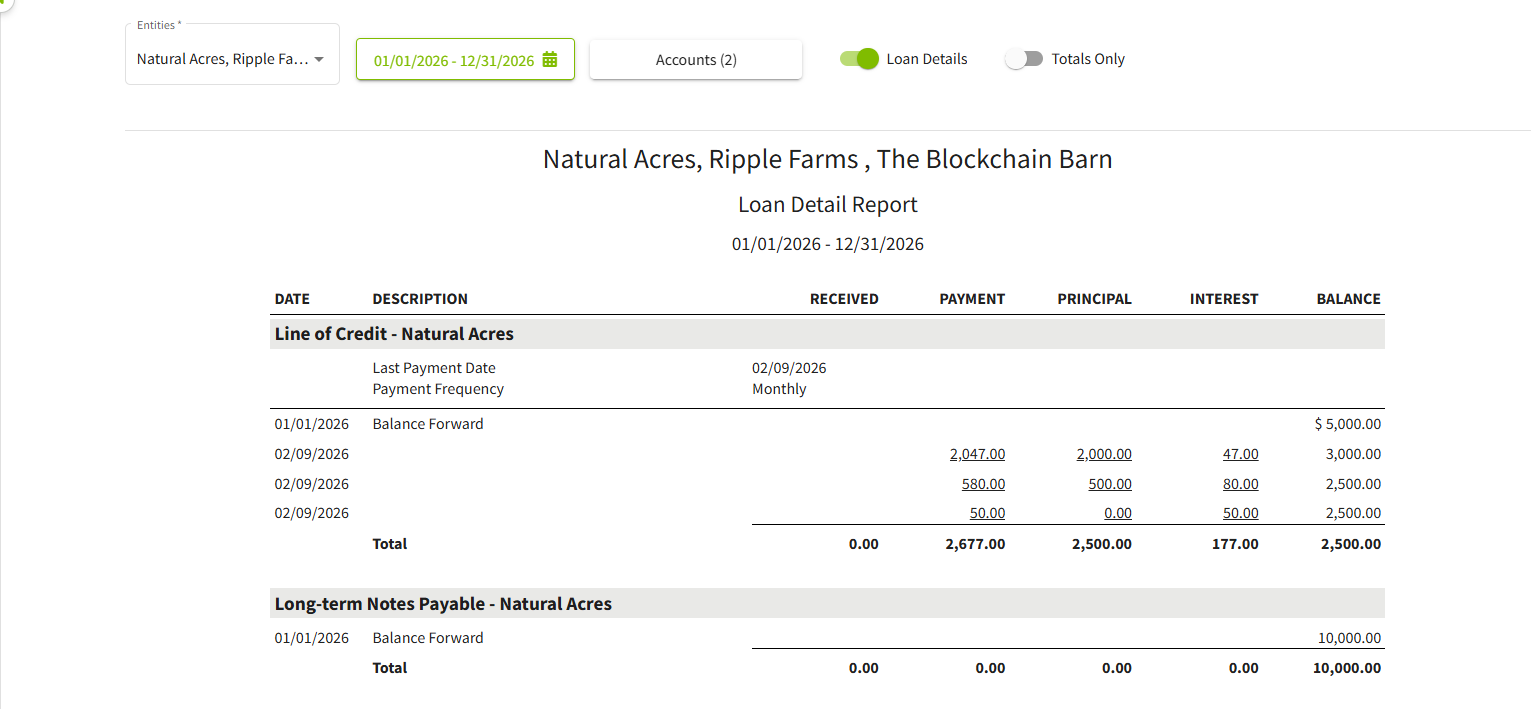
2. A Loan Detail Report is generated for all configured entities and defaults to the current date.
You can click into the fields to filter by specific entities or adjust the date range as needed.
By default, the report selects the accounts associated with your Loans. To modify this, deselect the accounts and click Apply, followed by Update Report.
To display detailed loan information, toggle Loan Details on and click Update Report. The report will refresh to show the expanded loan details.
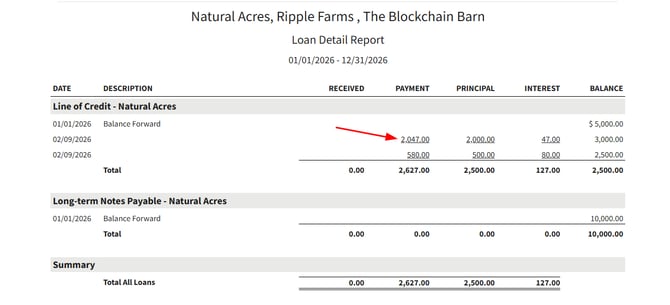
3. Amounts shown as underlined values are clickable. Click an underlined amount to drill down into the details. This action opens the related transaction, where you can review additional information.
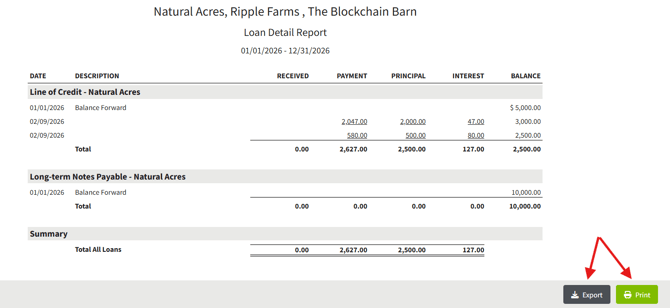
4. The report can be exported as a .CSV file or printed. Select Export to generate a .CSV file, or select Print to generate a printable version.