![Type=Full, Color=Light, Lockup=Default@2x.png]](https://info.tractionag.com/hs-fs/hubfs/Type=Full%2c%20Color=Light%2c%20Lockup=Default@2x.png?height=32&name=Type=Full%2c%20Color=Light%2c%20Lockup=Default@2x.png)
Before adding an opening balance for Harvested Inventory, users must first set up Crops and Harvest Products. Instructions for completing these steps can be found here.
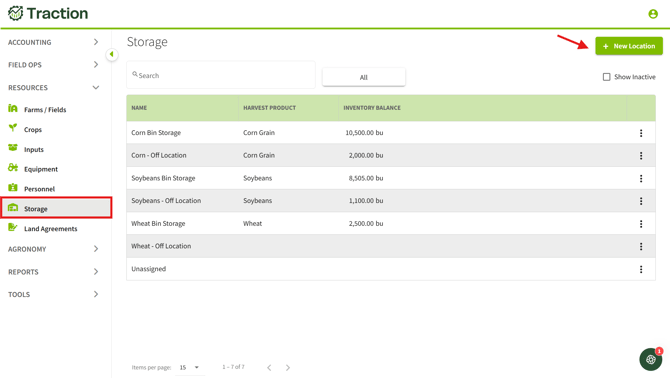
1. Navigate to Storage found within Resources > click on + New Location.
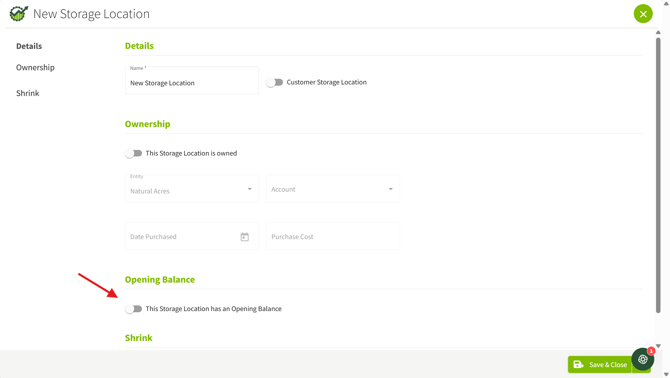
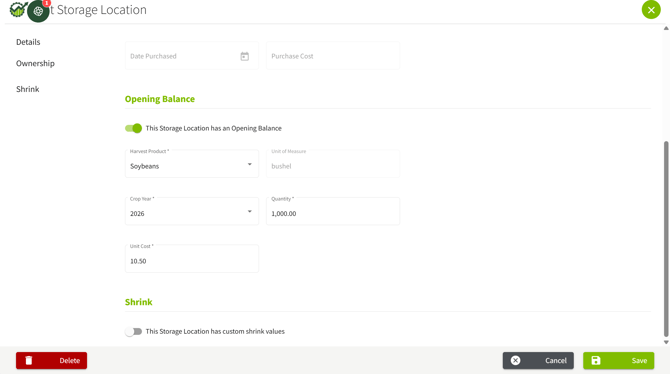
2. Fill in the New Storage Location Details, and Ownership if applicable. Slide on the bar for This Storage Location has an Opening Balance.
3. Fill out the required fields, this includes selecting the Harvest product, the unit of measure, Crop Year, Quantity and Unit Cost. Click Save & Close.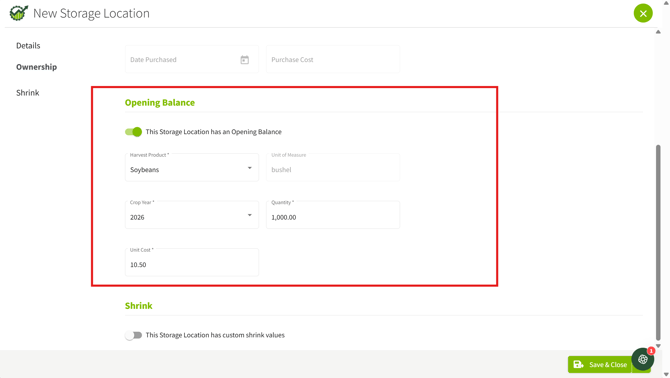
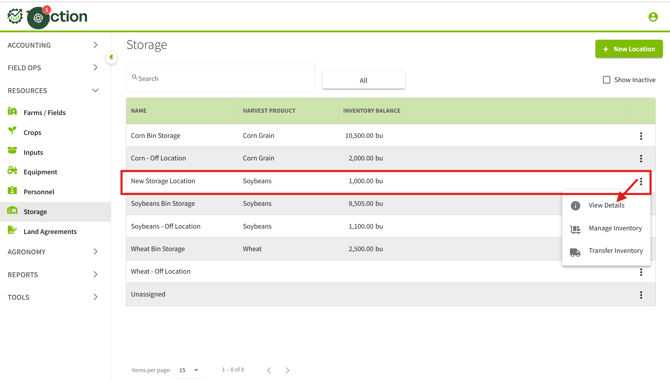
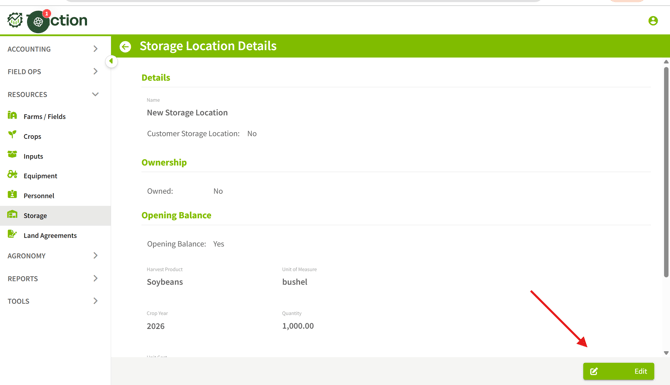
4. If the Opening balance needs edited > Navigate to the Storage Location > click the three dots to right > click View Details.
5. Click the edit button on the bottom right side of the screen.
6. Make the desired changes > click Save.
7. You can review current inventory of your harvested crops within the Harvested Crop Inventory Report.