![Type=Full, Color=Light, Lockup=Default@2x.png]](https://info.tractionag.com/hs-fs/hubfs/Type=Full%2c%20Color=Light%2c%20Lockup=Default@2x.png?height=32&name=Type=Full%2c%20Color=Light%2c%20Lockup=Default@2x.png)
Print or Export a list of equipment
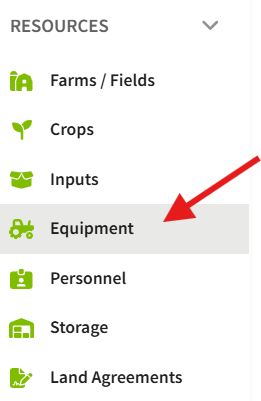
1. Using the navigation menu on the left of your screen, open the Resources menu and select Equipment
2. Choose what you want in your list. The report is created from your selections, so set these first:
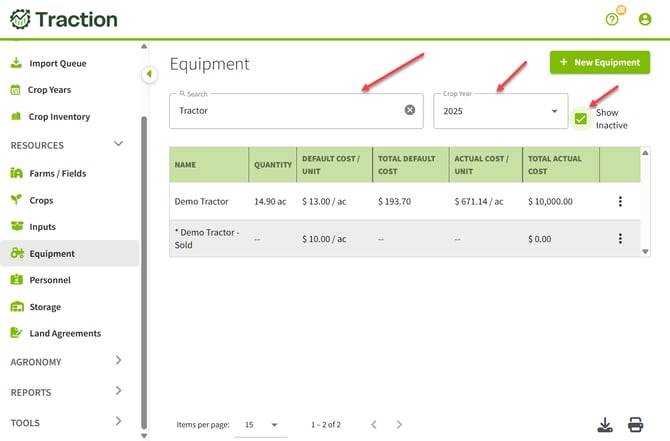
- Crop Year: Select the year you want.
- Show Inactive: Check this box to include inactive equipment.
- Search: Enter a name to include only matching equipment.
Tip:
Your printout or CSV file matches the Crop Year, Show Inactive, and Search settings you chose. If a piece of equipment is missing, check those settings and try again.
In the example below, the list is filtered to show equipment searched for Tractor, set Crop Year to 2025, and checked Show Inactive. . The Demo Tractor - Sold has an asterisk by the name indicating that it has been set to inactive.
3. In the lower right corner of the screen, select an icon:
- Export (download icon, left): saves the list as a CSV file. This CSV file will download into the downloads folder and can be opened in a spreadsheet program.
- Print (printer icon, right): opens a printable copy (you can also save as a .PDF as the printer in your print window).
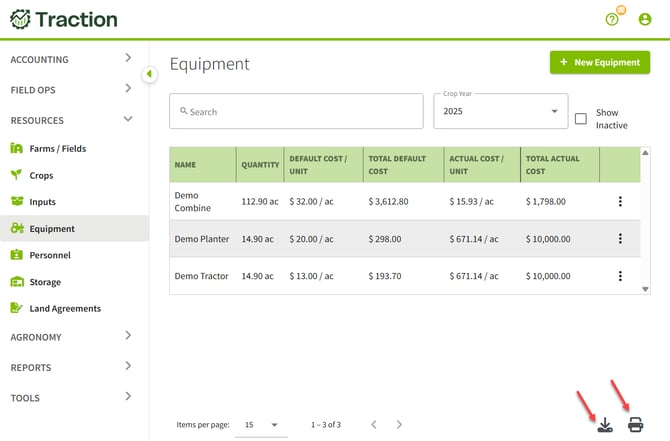
What print looks like with only the 2025 crop year selected as in the image above.
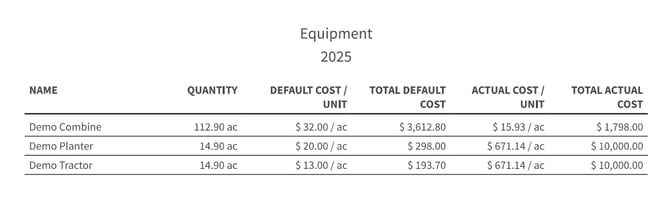
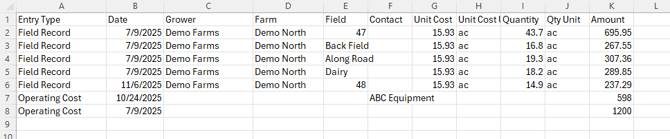
What export looks like.

Print or Export a list of costs associated with a piece of equipment
1. Go to Resources > Equipment.
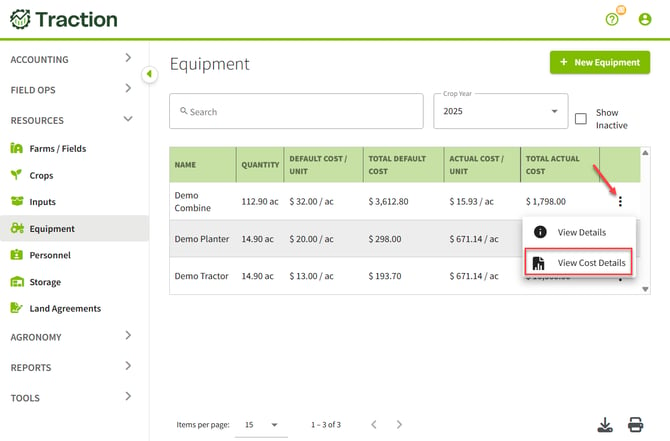
2. Find the piece of equipment. Select the three dots at the end of its row, then select View Cost Details.
3. On the Equipment Cost Details screen, choose which costs you want in your report. The report is created from your selections, so set these first:
- Crop Year: Select the year you want.
-
All Entry Types: Select this button to choose which types of entries to include, such as Field Records, Operating Costs, or All.
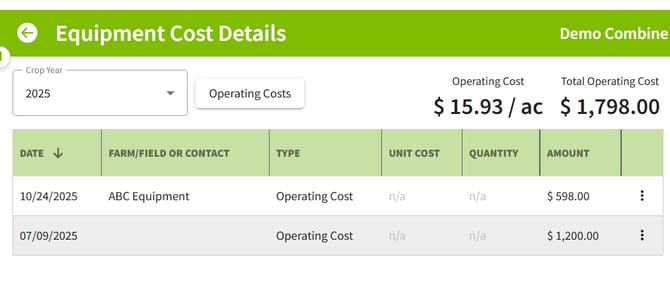
Tip: Your printout or CSV file matches the Crop Year and entry type you selected. If an expected cost is missing, check those settings and try again.
4. In the lower right corner of the screen, select Export (download icon) or Print (printer icon).
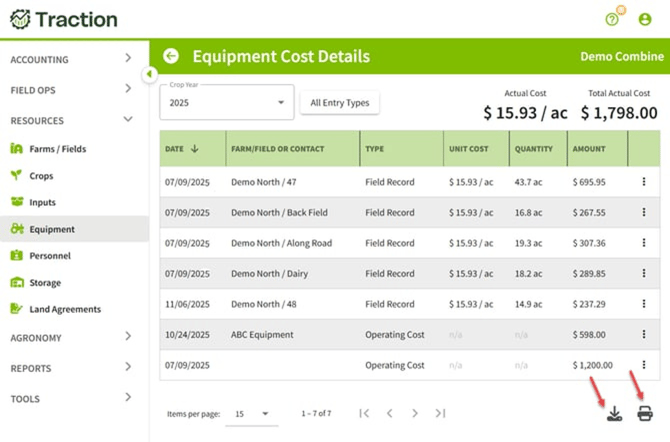
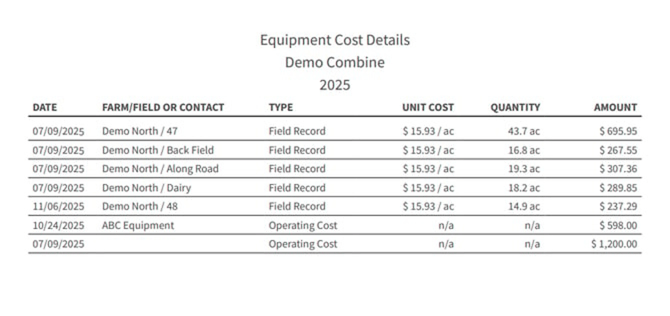
What Print looks like.
What Export looks like.