You have two options to setup cover crop tracking in Conservis, based on whether the cover crop generates revenue:
To create a cover crop as an input.
-
-
Go to PRODUCTION > SETUP > Inputs
-
Click the New Input button
-
Category - select "Other"
-
Subcategory - select "Other"
-
Name your cover crop.
-
Since you are mainly just tracking the cost of seed here, add units of measure for your seeds. Most common is to select weight and lbs for units of measure.
-
As with all inputs, add a default cost per unit for the seed
-
If you use machine integration, the cover crop cannot flow into Conservis automatically as a planting ticket, because we have not set it up in the seed category. This means you will want to use the mobile app or the back office when creating activity tickets for your cover crop. Using this method, when you plant a cover crop you should create a spreading ticket. This way the cover crop expenses are charged to the crop on the field the same as other spreading tickets.
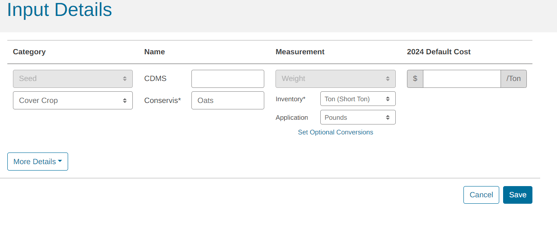
Here's an example of that this input setup might look like:
Option 2: Cover crop generates revenue. If you are using a cover crop that will be harvested to generate some form of revenue, create a new crop type called Cover Crop in Conservis. This method is best for tracking sustainability over time and is best when you do not need to attribute the cover crop costs to a different crop..png?width=546&height=222&name=image+(11).png)
To create a cover crop as a new crop type.
-
If this is your first cover crop, Contact Customer success and request the team add a new crop type into your farm setup.
-
Once backend setup is complete, go to PRODUCTION > SETUP > Crops
-
Add a new commodity (how will you be marketing the end product) by clicking the New Commodity tab.
-
Then add the new cover crop by clicking on the New Crop tab.
-
Now you can add the seed for this crop as an input and track this crop separately from other crops.
-
To learn more about working with concurrent crops vs. sequential crops in Conservis go to: https://success.tractionag.com/afm/adding-crops-to-fields
Here's an example of what this seed input setup might look like: